Today at a glance
Clock on and off, see the jobs published for you today, this week’s hours and what is waiting for you.

On a phone, the Me tab becomes the Field view: the clock, today’s jobs and the week’s hours a thumb away. Clocking on and off and job cards keep working with no signal.
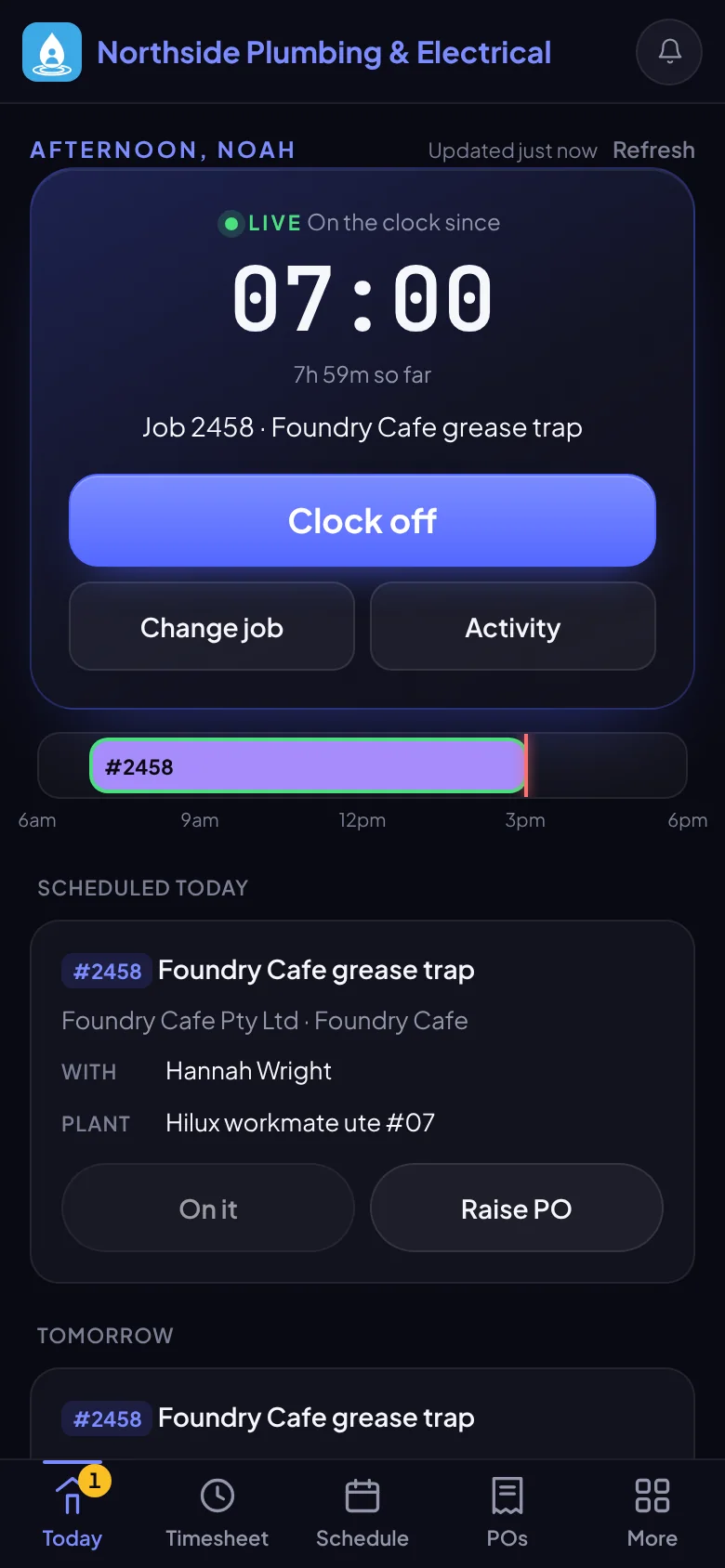
Clock on and off, see the jobs published for you today, this week’s hours and what is waiting for you.
Today, Timesheet, Schedule and More sit on a tab bar at the bottom of the screen, with POs too for anyone who can raise purchase orders.
Clock on, clock off and job cards (add, change and delete) are saved on the phone and sent in order when signal returns. If the server refuses one, for example because the card was changed on another device, it stays on Today with the reason and a Discard button. Sending the week, pulling it back and raising a purchase order need signal.
On a job, Navigate opens directions to the site in Google Maps or Apple Maps, and Call dials the customer’s phone number from simPRO. Each shows only when simPRO holds the site or customer for that job.
Clocking off opens a review of the day: your cards, hours, lunch and any scheduled job with no time.
Sent a week too soon? Pull it back while it is still waiting for approval, edit it and send it again. If your company approves timesheets automatically on send, there is nothing to pull back.
A light, high-contrast theme you can switch on for each device, under More, when the sun is on the screen.
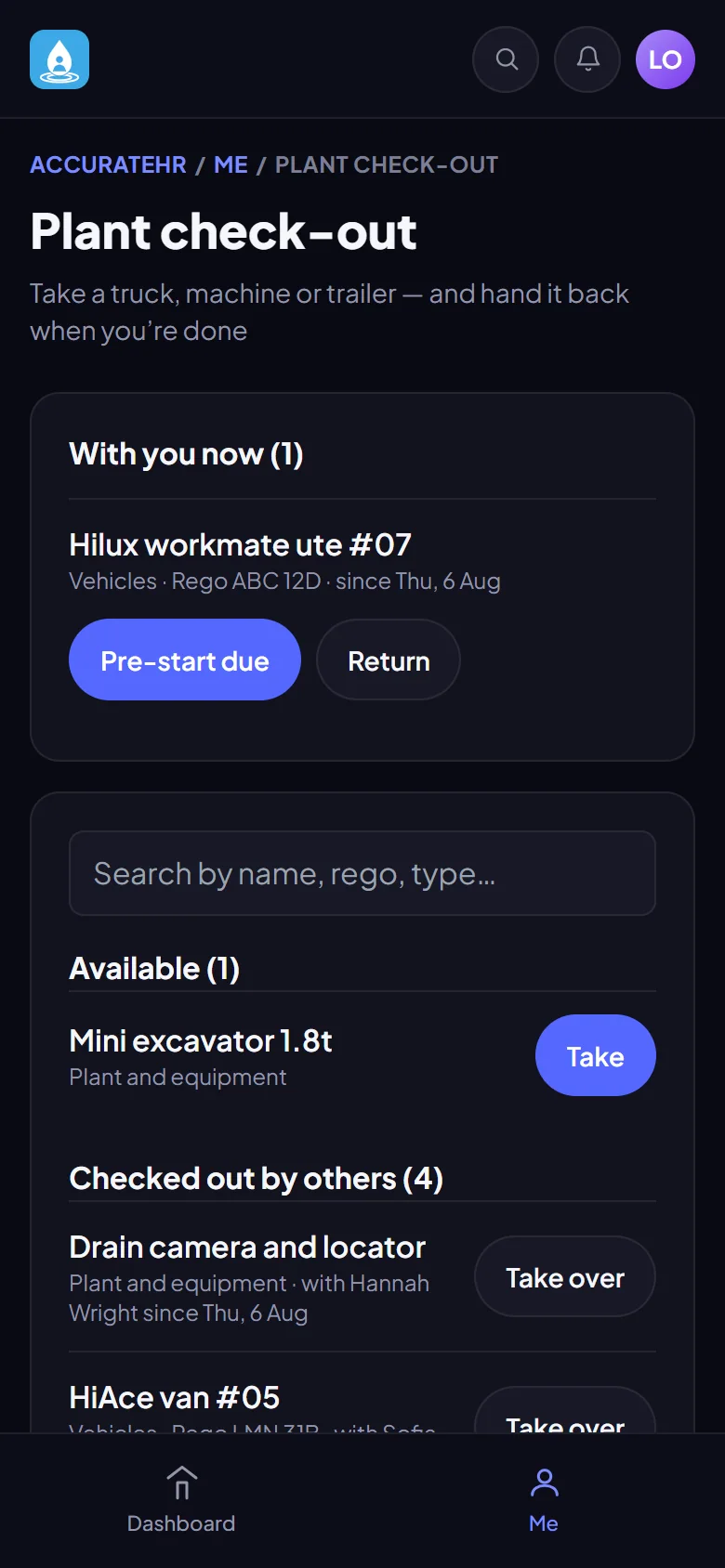
A device can use the Field view or the full app, whichever suits the person holding it.
It runs in the phone’s browser and can be added to the home screen. Jobs, Navigate, Call and purchase orders come from simPRO, so they need simPRO connected. simPRO is being prepared for customers, so talk to us before you plan around it.
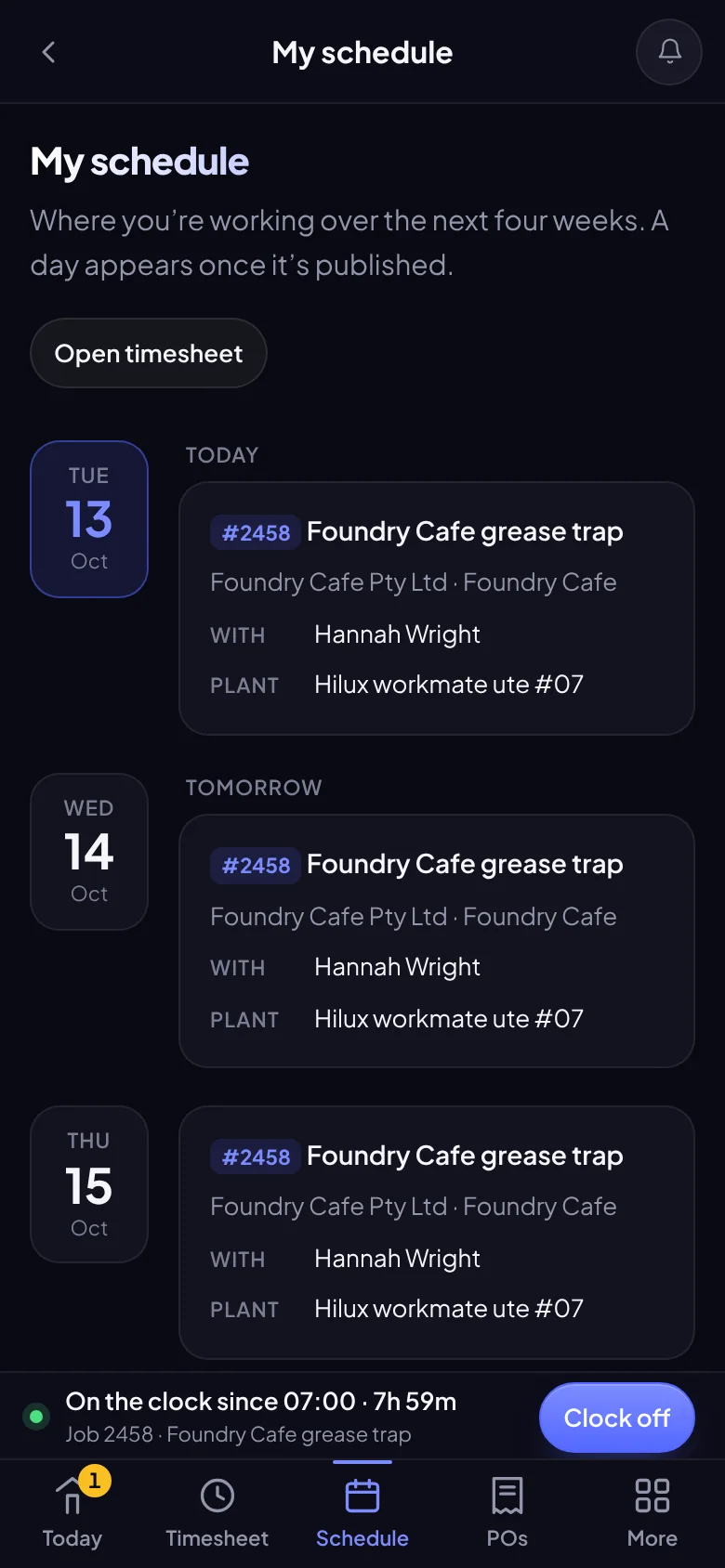
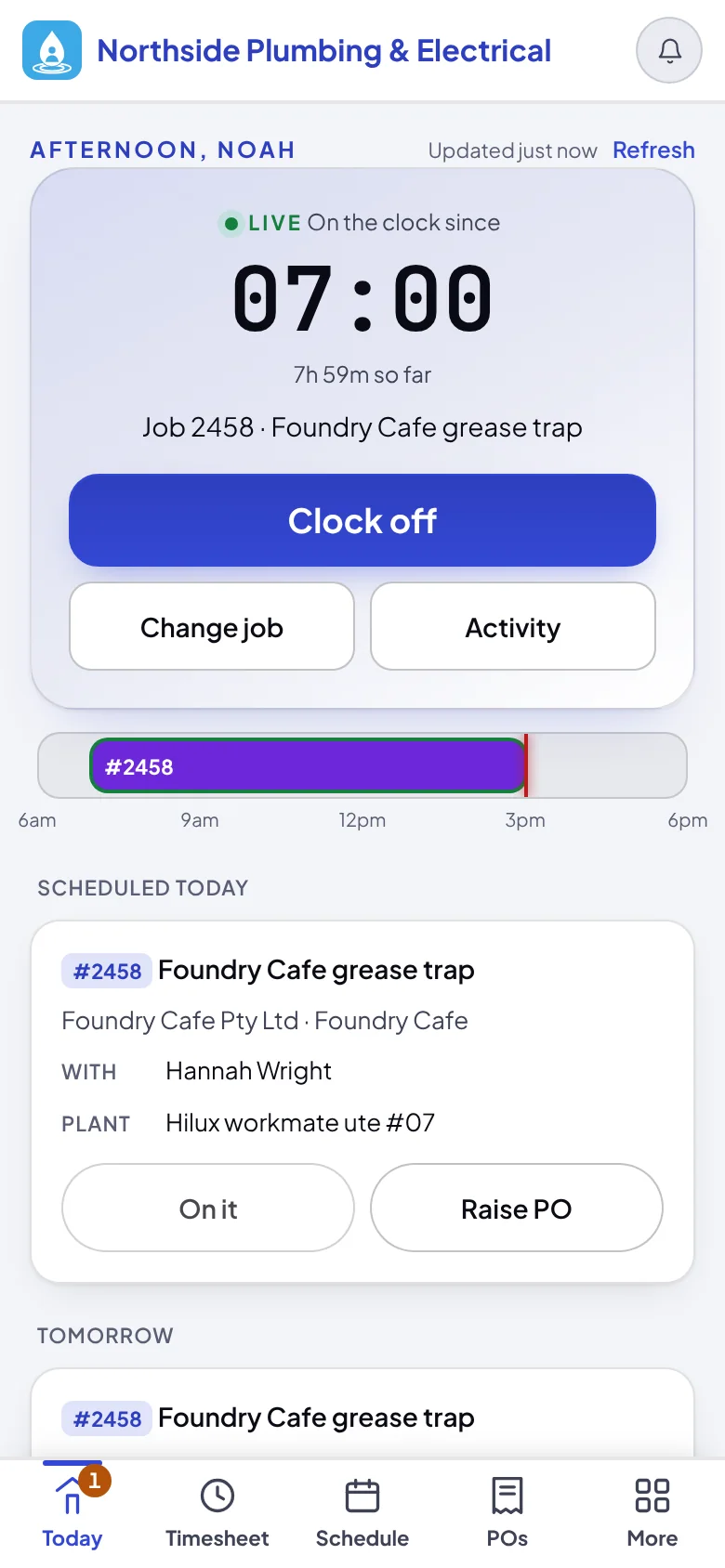
Clock on, check the schedule, add time and send the week.
The same view on their phone, with the full app a switch away.
Tell us about your business and we will get you set up with AccurateHR.