Built for Australian trades businesses

Your crew, your jobs and your pay run, in one system.

Timesheets, scheduling, leave, licences, safety statements and pay in one app that works on the tools as well as in the office. It connects to Xero Payroll and Dropbox, and simPRO is being prepared, so approved hours and leave go to payroll without being typed in again.

Built in-house at Accurate Plumbing, where about 90 people use it every day.

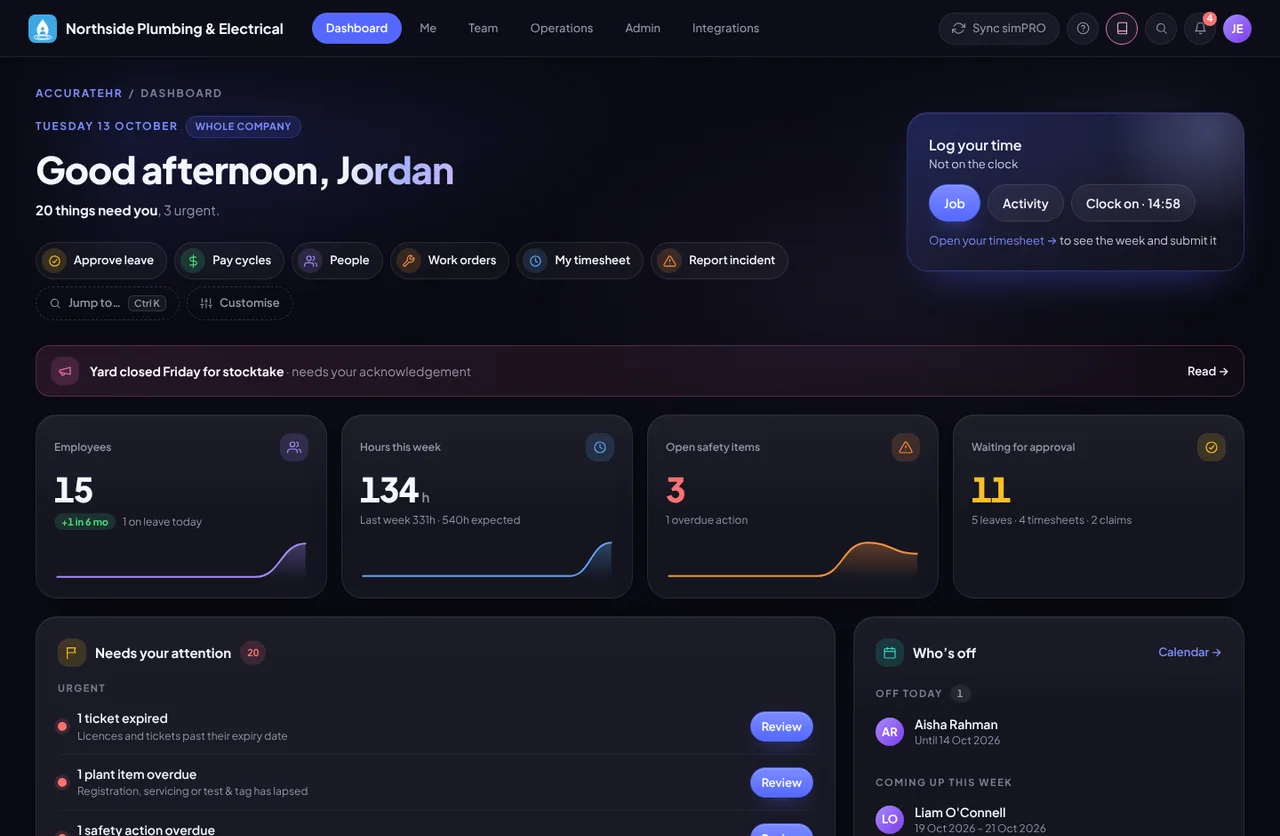
The owner’s dashboard: the whole company at a glance, with everything waiting on you
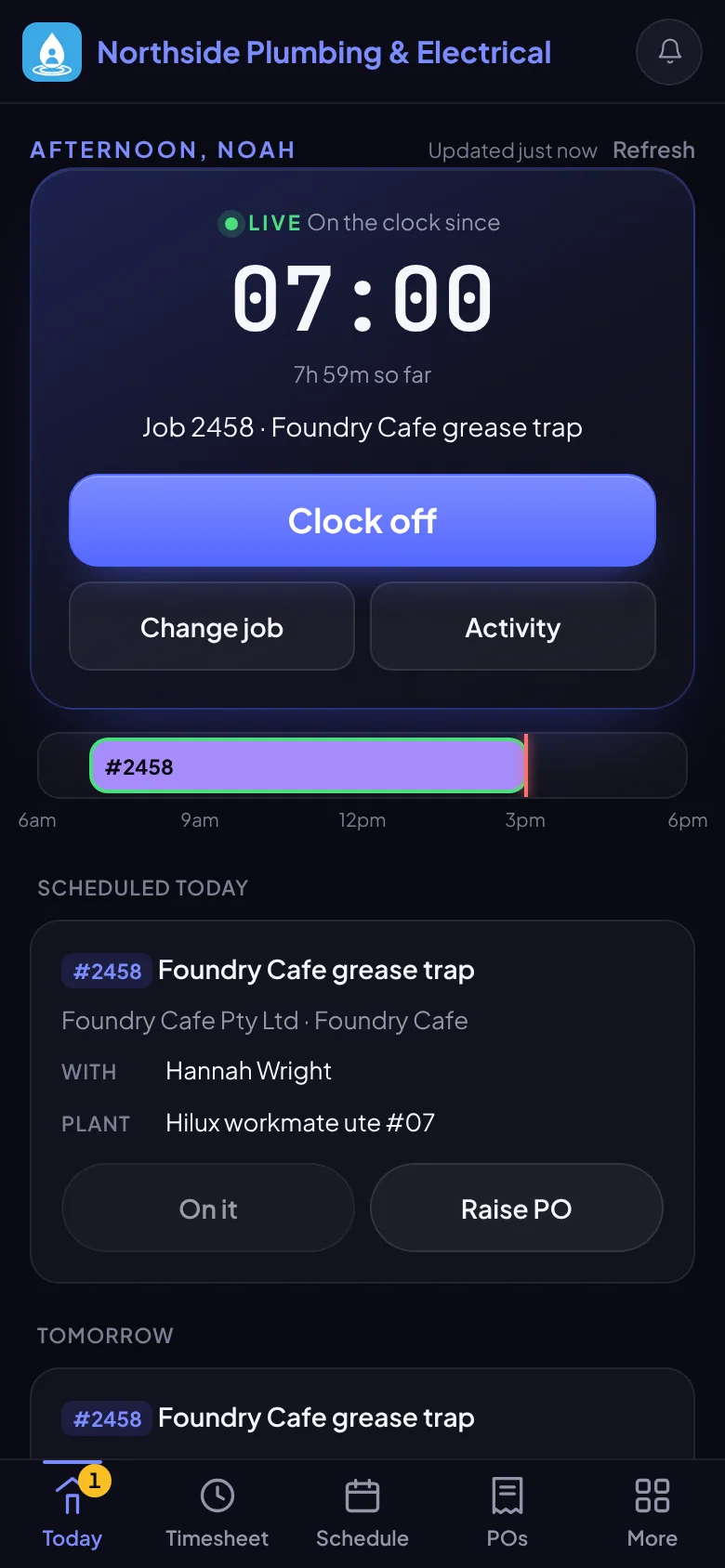
The Field view on a phone: on the clock, with the job and the crew for today
The real app, on made-up data.

Works with

  • Xero Payroll
  • Dropbox
  • simPRO (being prepared)
  • iPhone and Android
From the job to the pay run

One flow, from the first plan to the pay run.

What the office plans is what the crew sees, what the crew logs is what managers approve, and what managers approve is what gets paid.

  1. Plan the week

    Put people and plant on jobs on the planning board and publish the day. The people on it are told.

    See how
  2. Clock on in the field

    Clock on and off against a job on the phone, with or without signal, after signing on to the job’s safety statement, where it has one.

    See how
  3. Approve the day

    Staff submit each day. Managers approve it, or the company approves it automatically. Overtime is split by day using your timesheet profile.

    See how
  4. Pay it

    Hours roll up by earnings rate for the pay period, and the pay cycle goes to Xero Payroll.

    See how
  5. Stay compliant

    Licences, tickets, safety statements and plant checks, with the gaps flagged before they cost you a job.

    See how

Planning, clocking on and approving work against jobs read from simPRO, which is being prepared for customers.

The Field app

A phone app for the people on the tools.

On a phone, people on the tools get the Field view: Home, Job card, Safety, My week and More, built for one thumb and a bright day.

  • Clock on and off against a job, add or change job cards, and see today’s jobs, crew and plant.
  • Works with no signal. Time is kept on the phone and sent in order when the signal returns.
  • Read the job’s safety statement, sign on and tick the start checks before you start.
  • Sunlight mode for bright sun, and Reading & focus settings: a dyslexia-friendly font, bigger text and a calmer screen.
Good to know

Safety statements and checklists go on jobs read from simPRO, which is being prepared for customers.

See the Field app
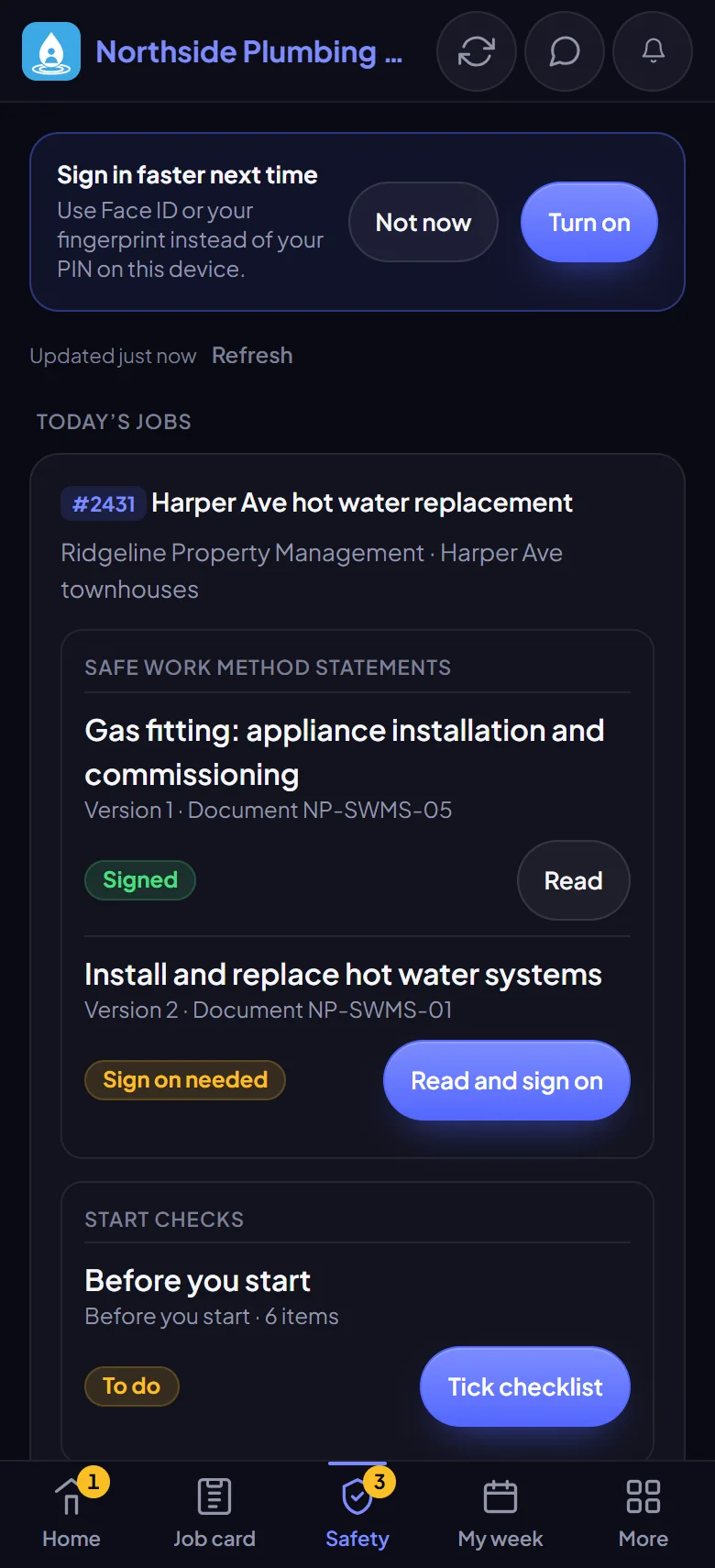
The Field view on a phone: on the clock, with the job and the crew for today
The Safety tab: a SWMS signed on to, one still to sign on to, and the start checklist to tick
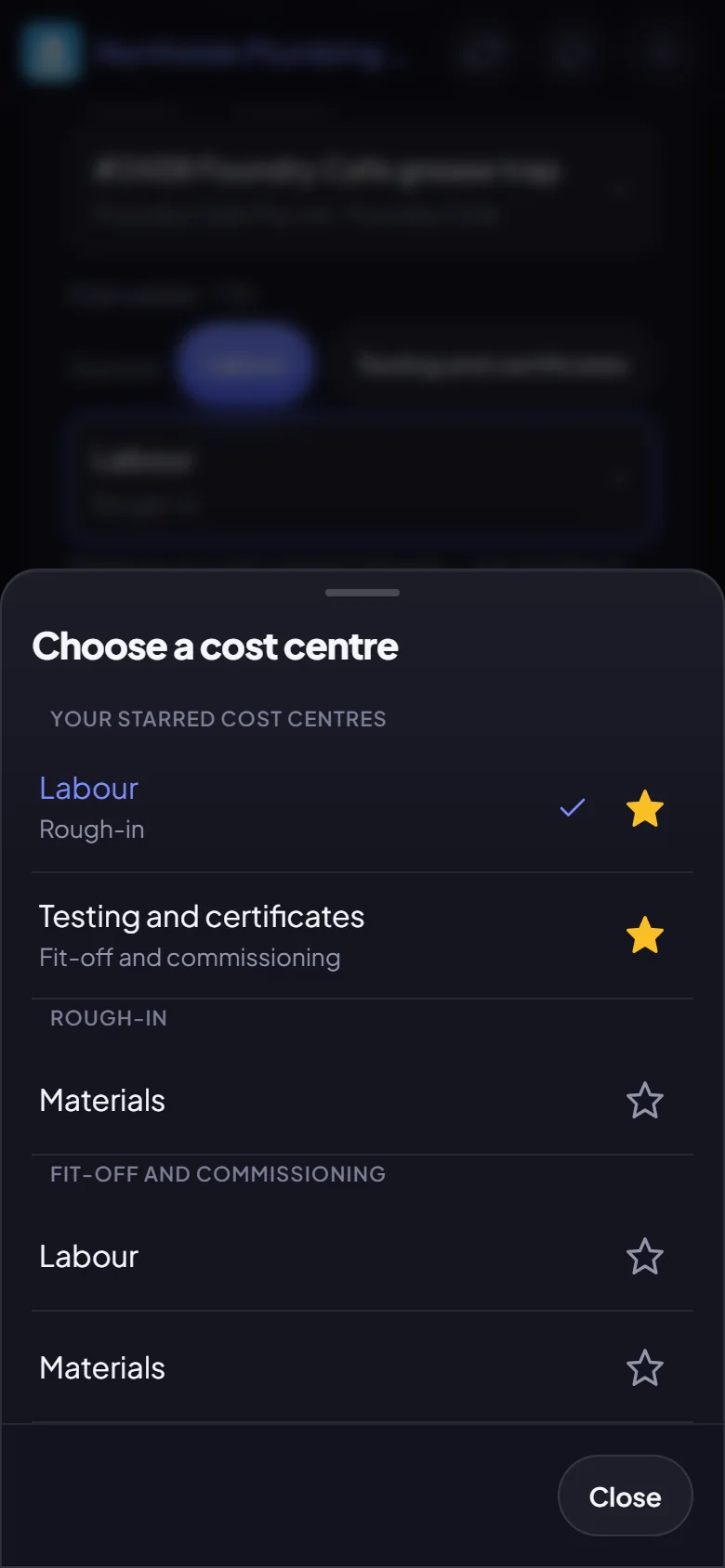
Choosing a job’s cost centre on a phone: one list with the person’s starred cost centres first, then each section of the job with its cost centres under it, and a star on each
The Field view on a phone, on made-up data.
Job safety

Safety statements your crew actually sign on to.

Write Safe Work Method Statements in the app, publish them as numbered versions that cannot be changed, put them on jobs, and see who has signed on.

  • Each person reads the statement on their phone and signs on by typing their name, with or without signal.
  • A new version asks everyone to sign on again, and the office sees who is still to sign.
  • Start is held until the statement is signed on and the start checks are ticked. Finish checks are recorded and never hold the clock.
  • Print the statement as a landscape page like the paper ones.
Good to know

Statements and checklists go on jobs read from simPRO, which is being prepared for customers.

See job safety
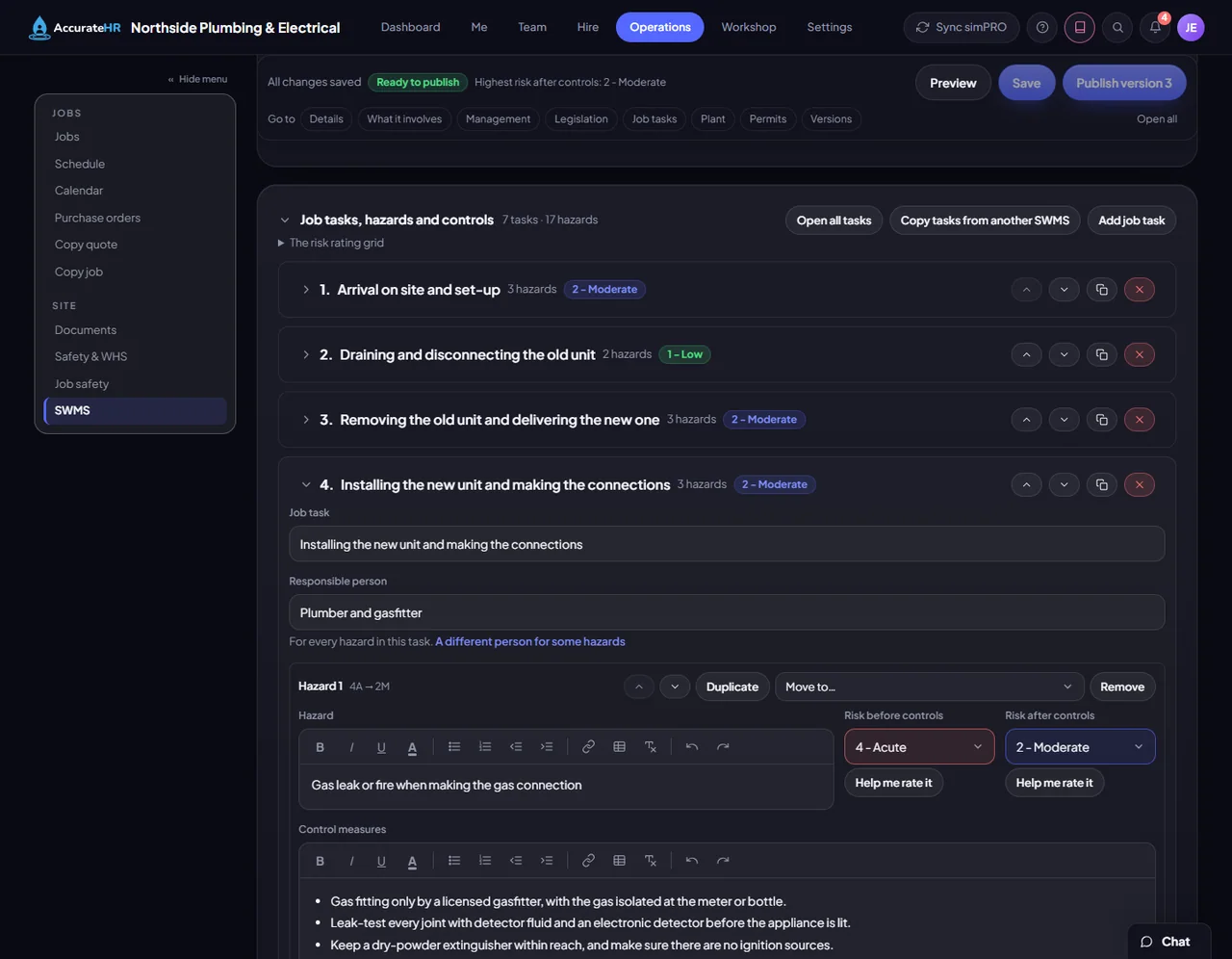
A SWMS open in the editor: job tasks one to a row, one task open with a hazard, its risk before and after, and its control measures
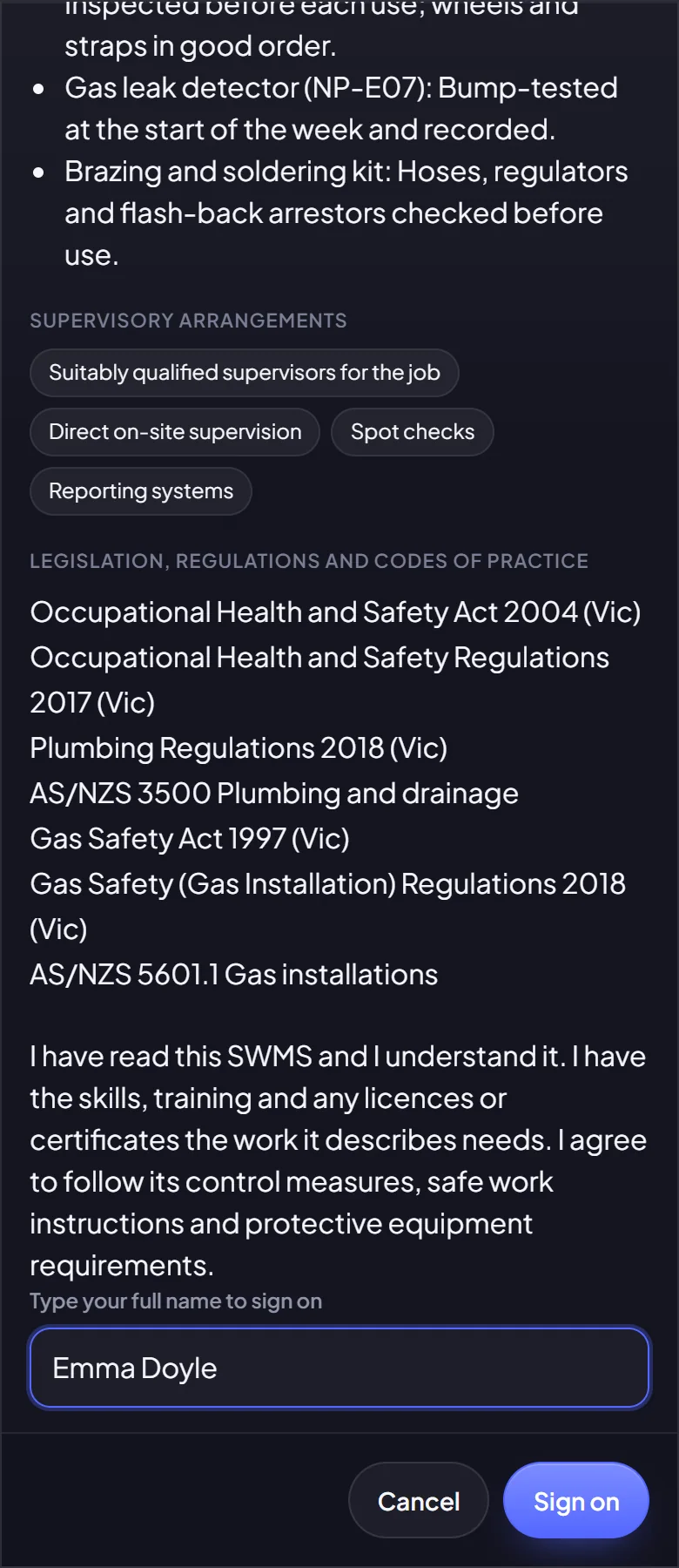
Signing on to a SWMS on a phone: the sentence being agreed to, a name typed, and the Sign on button
A SWMS open in the editor: job tasks one to a row, one task open with a hazard, its risk before and after, and its control measures.
See it in action

The real app, on made-up data.

These are screens from AccurateHR itself, filled with a made-up company. Choose an area to see it, then open its page for more.

People & HR

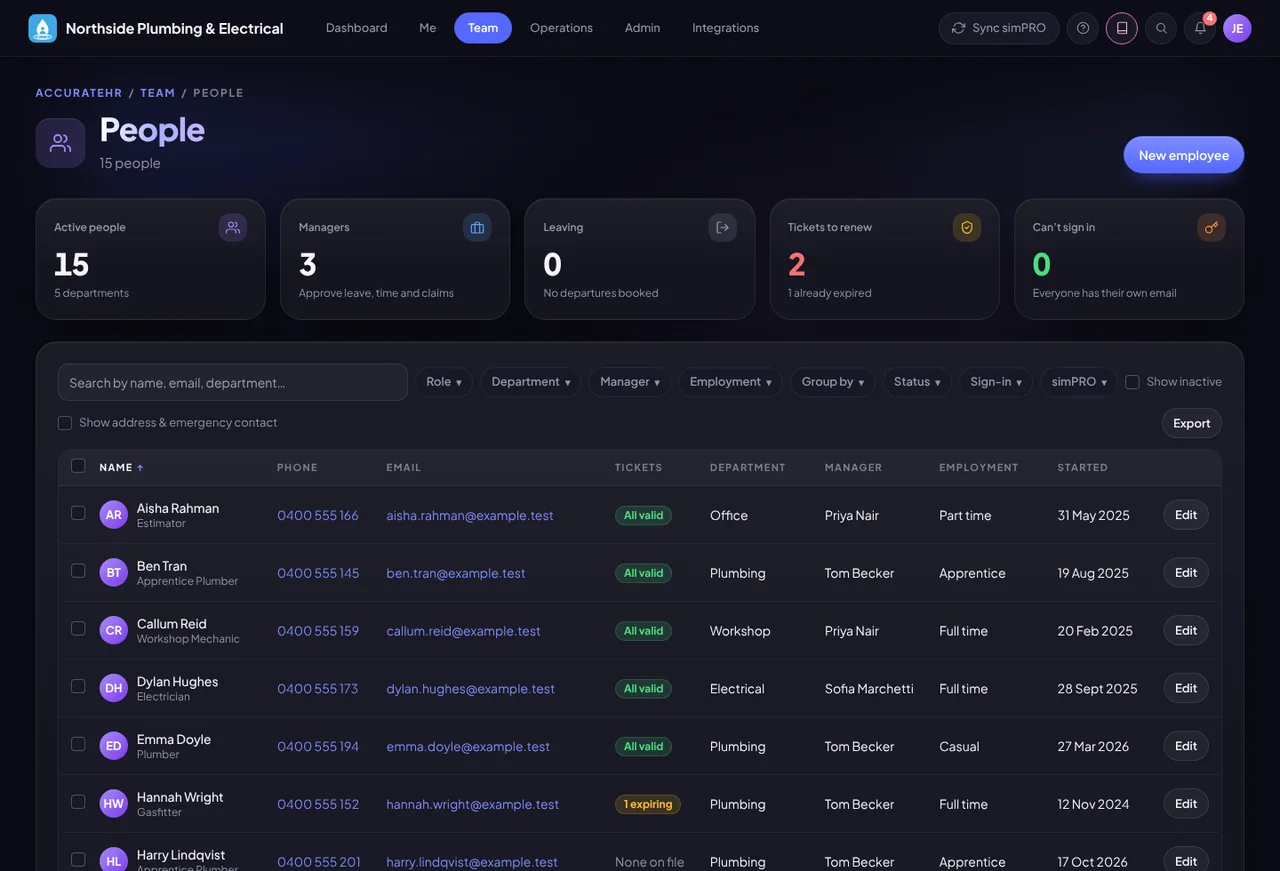
The people directory: everyone in the company with their manager, ticket status and start date
Every person, and everything about them, in one place. See People & HR

Hiring & onboarding

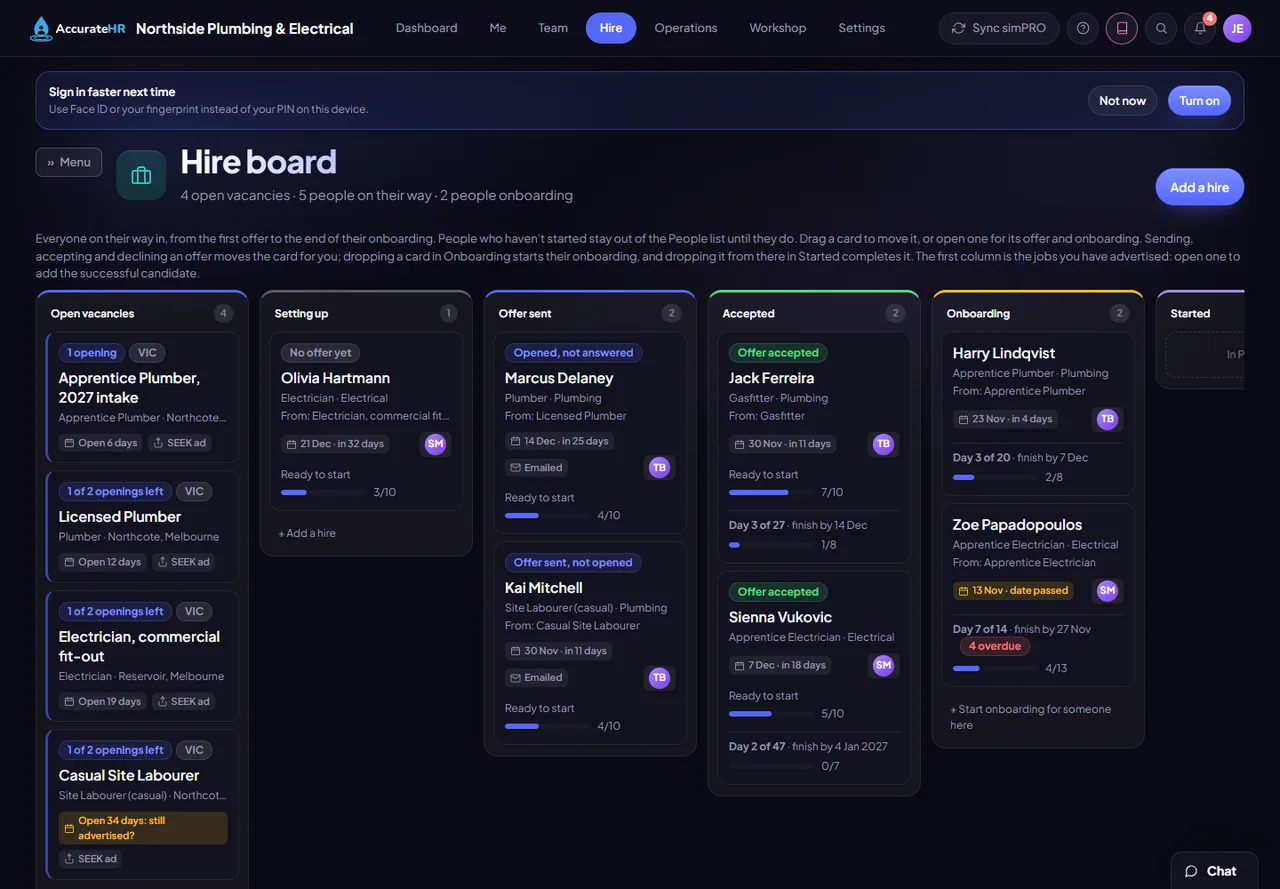
The Hire board: open vacancies, people being set up, offers sent, offers accepted and new starters onboarding
From the advertised job to the leaver’s last day. See Hiring & onboarding

Time & pay

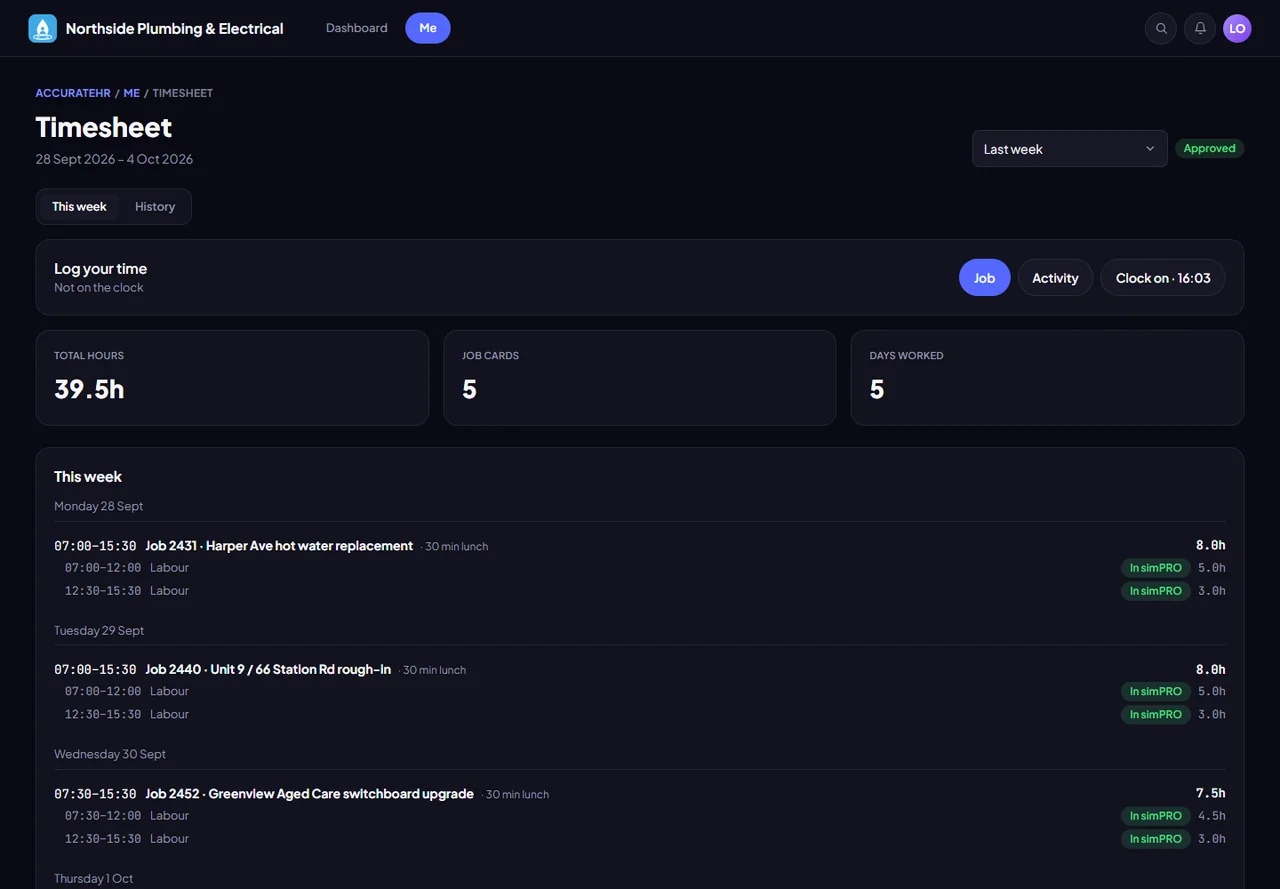
A weekly timesheet with job cards and the Submit for approval step
From the hours worked to the pay run. See Time & pay

Jobs & scheduling

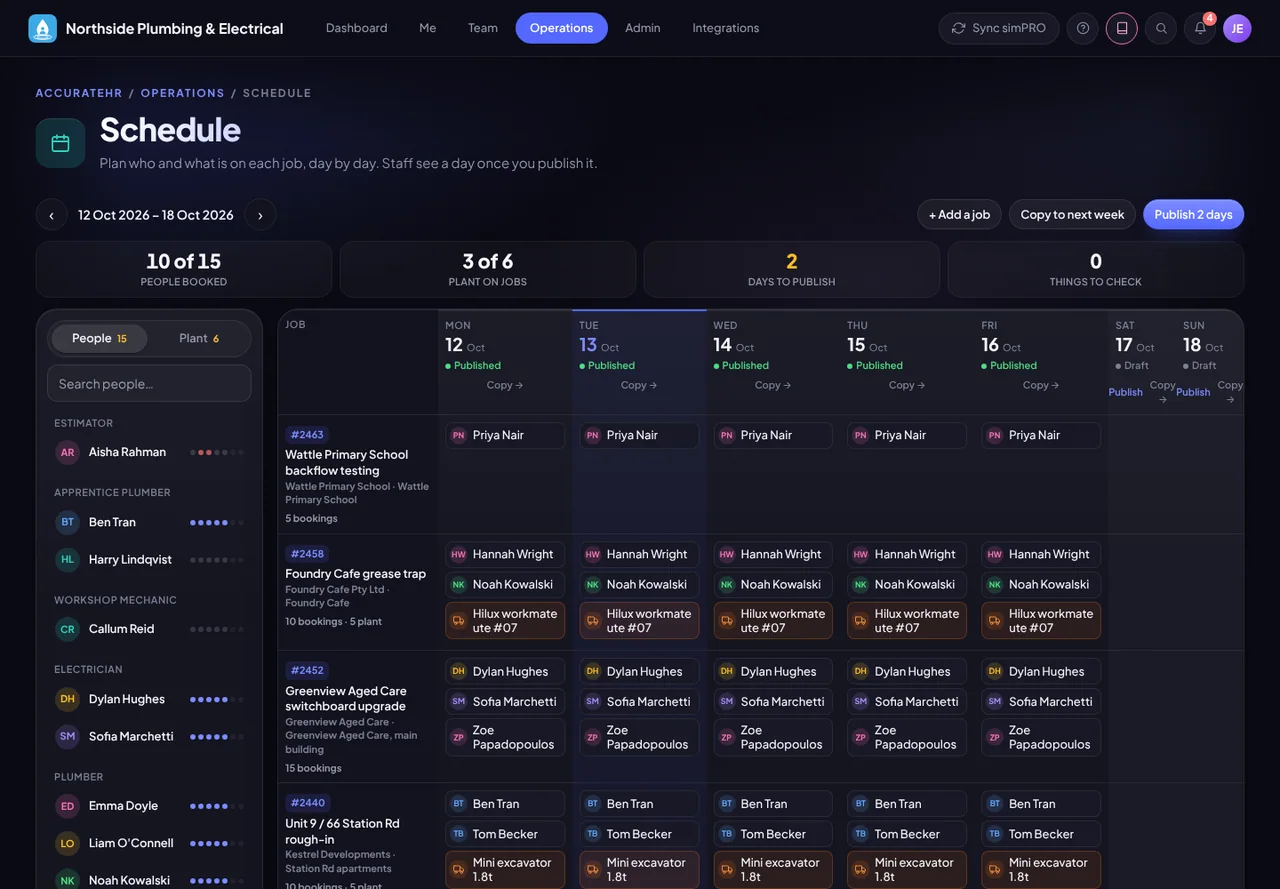
The planning board: days across, jobs down, with the people and plant planned onto each job
From the job on the list to the crew on site. See Jobs & scheduling

Safety & compliance

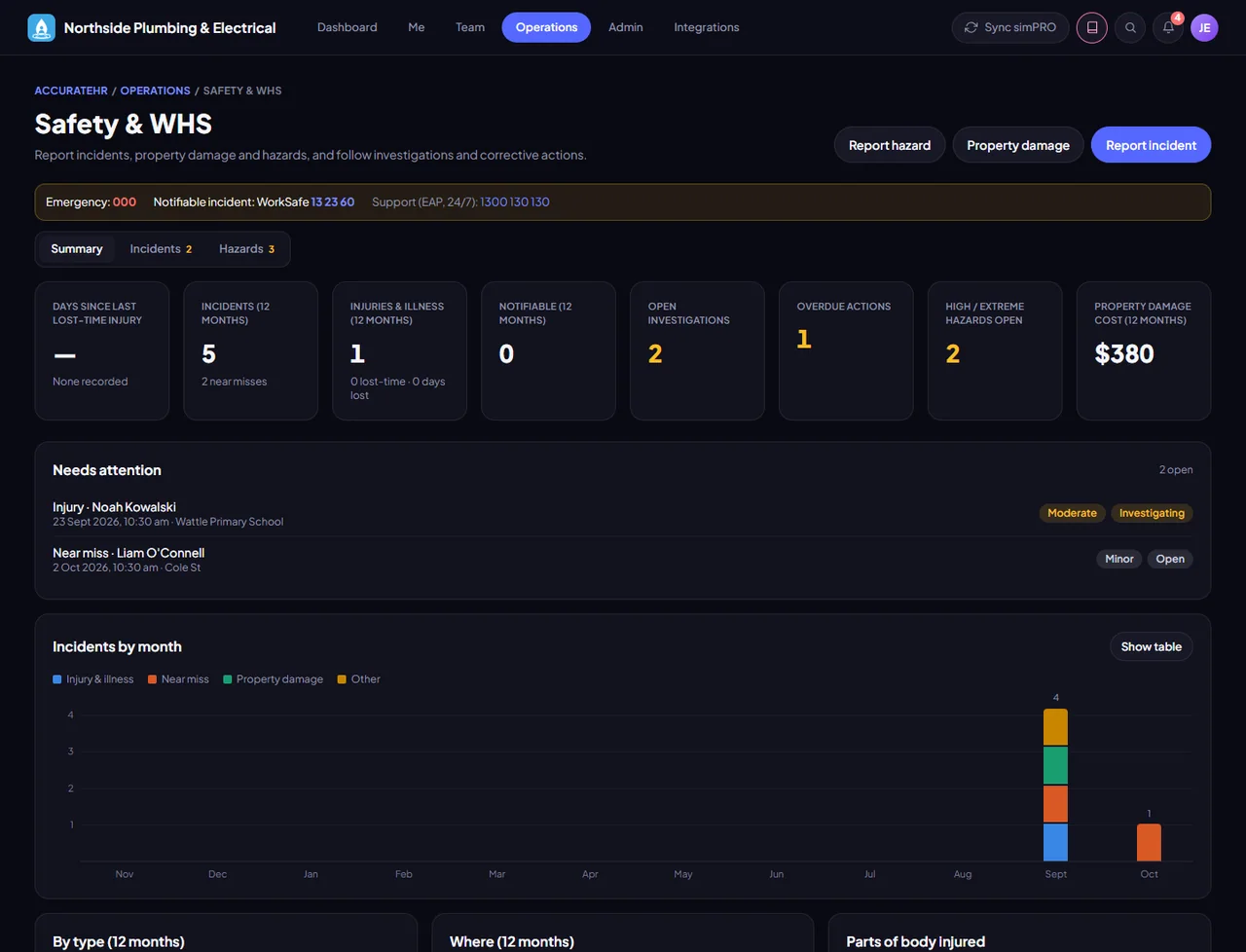
The safety summary: incidents, open investigations, overdue actions and hazards
Know who has signed on, who holds the ticket and what is due. See Safety & compliance

Control & setup

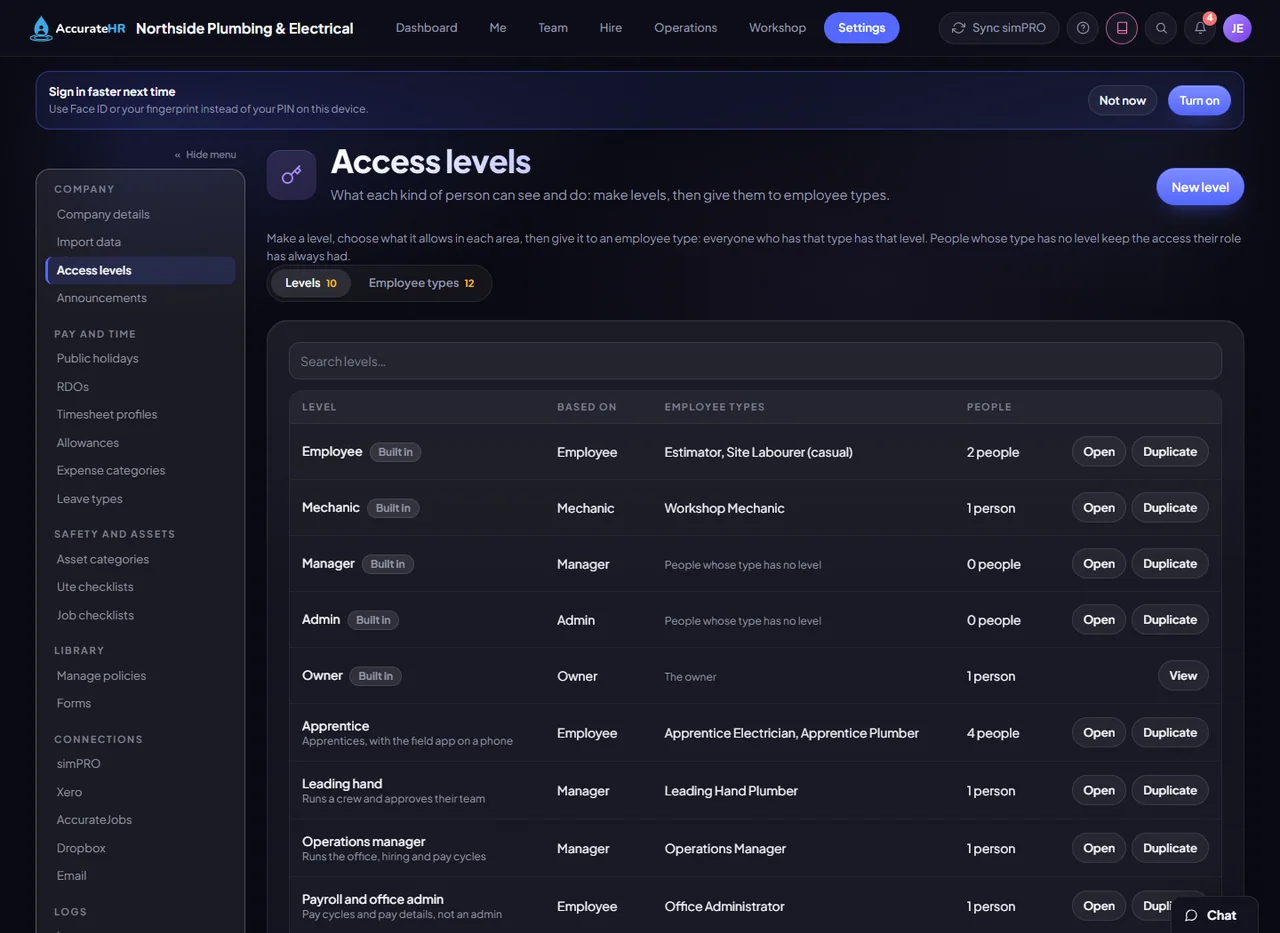
Access levels: the built-in levels and the company’s own, with the employee types and number of people on each
You decide who sees what, and set it up once. See Control & setup
Integrations

Connected to the tools you already run on.

Xero Payroll and Dropbox connect from the admin screen. simPRO is being prepared for customers. People, leave, documents, onboarding, expenses and reviews work on their own.

simPRO

Sends employees, licences, plant, leave, approved time and job costs to simPRO, and reads jobs, suppliers and schedules back. Purchase orders are raised in simPRO from inside the app. Being prepared for customers: talk to us before you plan around it.

How it connects

Xero Payroll

Connect once. Approved pay cycles go across to Xero Payroll (Australia) as timesheets and leave applications, and for leave types linked to Xero, balances come back, so the balance staff see what payroll sees.

How it connects

Dropbox

Share the Dropbox folders you choose, such as procedures and handbooks. Staff open the files inside the app and never need a Dropbox login.

How it connects
For everyone on the team

The right view for each person.

Everyone signs in with their email and a PIN, or Face ID or a fingerprint on their phone, and sees only what their access level allows. Each person has one profile that pulls their leave, hours, documents, tickets, assets and reviews together.

Staff

  • Clock on and off, and see today’s jobs and the crew
  • Request leave and check balances
  • Submit their days and claim expenses, with receipts
  • Send in their own tickets, and read and sign statements and policies

Managers

  • See their team and approve leave, days, expenses and allowances
  • Run reviews and one-on-ones
  • Spot expiring tickets before they cost a job
  • See who is still to sign on to a job’s safety statement

Admins and owners

  • Set up leave types, policies, forms and contract templates
  • Run pay cycles and send them to Xero Payroll
  • Choose who sees what with access levels, down to bank details and pay rates
  • Connect Xero and Dropbox

It tells people when they are needed

Add AccurateHR to the home screen like any other app. A notification can reach people in the bell menu in the app, by email and by push notification on their phone. Some, such as announcements, email only if you choose.

How it works

From set-up to your first pay run.

  1. 1

    Set up your company

    Open the setup link we send and create your owner account, add your people one by one or from a spreadsheet, and choose your leave types, policies and access levels. Each person gets their own sign-in.

  2. 2

    Connect your tools

    Link Xero and Dropbox from the admin screen when you are ready, and approved hours and leave go across to Xero. simPRO is being prepared for customers, so talk to us before you plan around it.

  3. 3

    Run your week

    Staff submit, managers approve, and admins send pay to Xero. Notifications by email and push keep everything moving without chasing.

Pricing

One simple price, per seat.

One price per seat, in Australian dollars.

AccurateHR

$20 AUD per seat
per month

One seat is one active team member.

  • Time, leave, expenses and pay cycles
  • People, hiring, contracts and onboarding, with documents and policies
  • Licences, safety statements, incidents, assets and plant
  • The Field app for the people on the tools, with push notifications and email alerts
  • Access levels, so each person sees only what they should
  • Xero Payroll and Dropbox integrations, with simPRO being prepared

Work out your monthly price.

10 seats × $20 a month

$200AUD per month

Get started
Questions

Good to know.

Who is AccurateHR for?

Australian businesses with people out in the field. It was built at Accurate Plumbing, so it understands how trades work: licences and tickets, plant and vehicles, safety statements and job-based timesheets. It is set up for Australia: Xero Payroll (Australia), your state’s public holidays offered for you to tick and check, and your state’s work health and safety regulator as a starting point you can correct.

What counts as a seat?

One seat is one active team member: anyone with an AccurateHR sign-in.

Do I need simPRO or Xero to use it?

Your people side (leave requests, documents, contracts, onboarding, tickets, incident reporting, assets and reports) works on its own. Timesheets and pay cycles built from time worked, jobs, scheduling, safety statements on jobs, purchase orders, and opening a job in your maps app and ringing the people who run it use jobs from simPRO, which is being prepared for customers, so talk to us before you plan around it. Xero Payroll and Dropbox are optional.

Does it work on phones, and without signal?

Yes. Open AccurateHR in your phone’s browser and add it to your home screen, and it behaves like any other app. People on the tools get the Field view, where clocking on and off and job cards work with no signal and are sent in order when it returns. Push notifications tell people when something needs them.

Who can see what?

Each person has an access level that decides what they can see and do: their own records, their team’s or everyone’s. Areas are being moved over to levels one at a time, and the rest follow the person’s role. Five levels come built in (Employee, Mechanic, Manager, Admin and Owner), and admins can make their own. Bank accounts, tax file numbers and pay rates can be hidden by level. Each company has its own account and its own data, and people only ever see their own company’s records.

Can I read the help before I sign up?

Yes. The help for every live part of the app is open to anyone at app.accuratehr.co/help, with what each part does and the rules worth knowing.

How do I get started?

Email us, tell us a little about your business, and we will get you set up. You can sign in to an existing account any time from the top of this page.

Ready to take the paperwork off your team?

Tell us about your business and we will get you set up with AccurateHR.

Email us Sign in