From the advertised job to the leaver’s last day.

Keep the jobs you have advertised and the people you are hiring on one board, send contracts and offers to be signed in the app, and give each new starter a guided first few weeks. A matching checklist covers the day someone leaves.

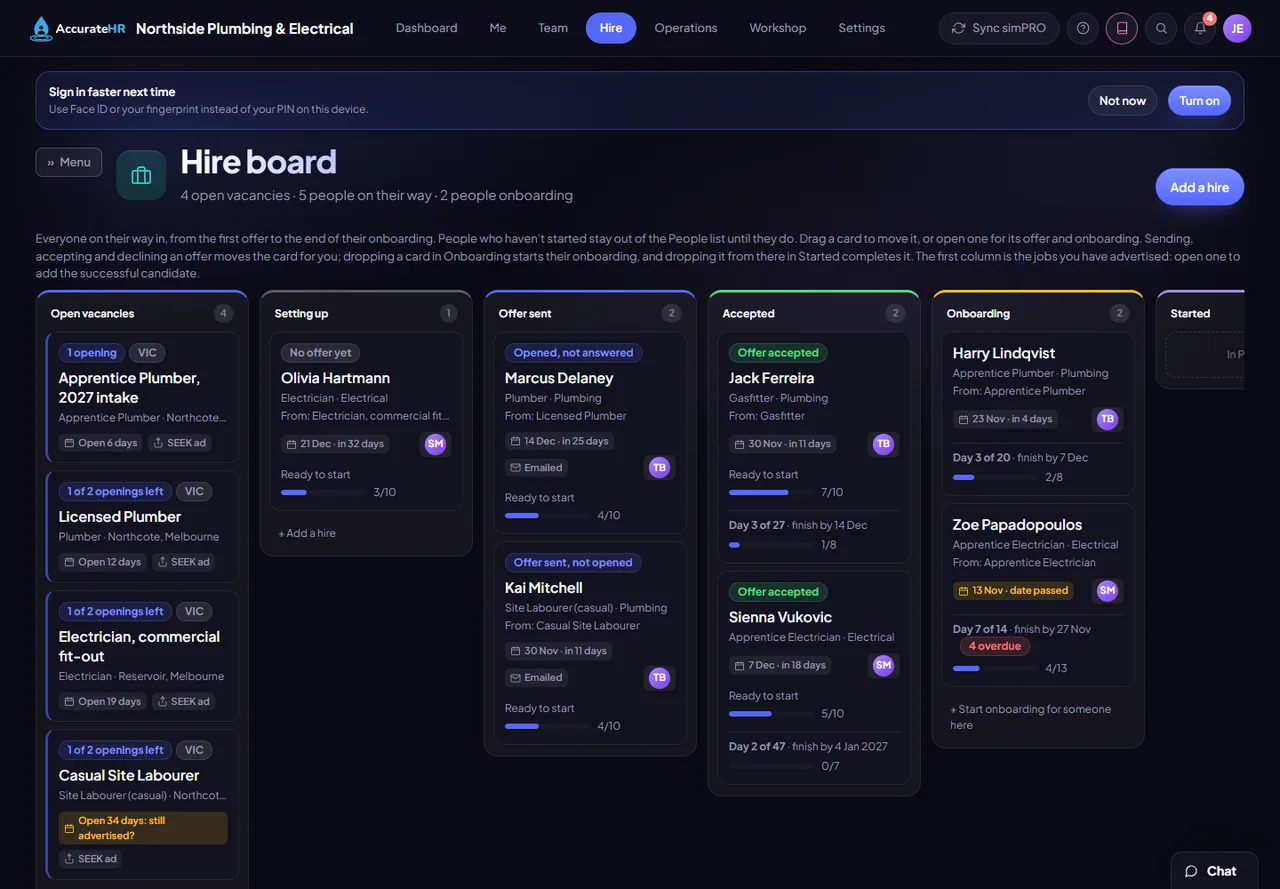
The Hire board: open vacancies, people being set up, offers sent, offers accepted and new starters onboarding
The Hire board: open vacancies, people being set up, offers sent, offers accepted and new starters onboarding. A screen from the app, showing made-up sample data.

Hire board

A board of cards for people who haven’t started yet, so they stay out of your People list until they do. Each card sits in a column: Setting up, Offer sent, Accepted, Onboarding, Started or Declined.

  • Out of the headcount until they start. People in Setting up, Offer sent and Accepted are left out of the People list and the headcount, and People shows a note saying how many are on the board.
  • The card moves for you. Sending, accepting, declining or withdrawing an offer moves the card. Drop a card in Onboarding and their onboarding starts from the template you pick.
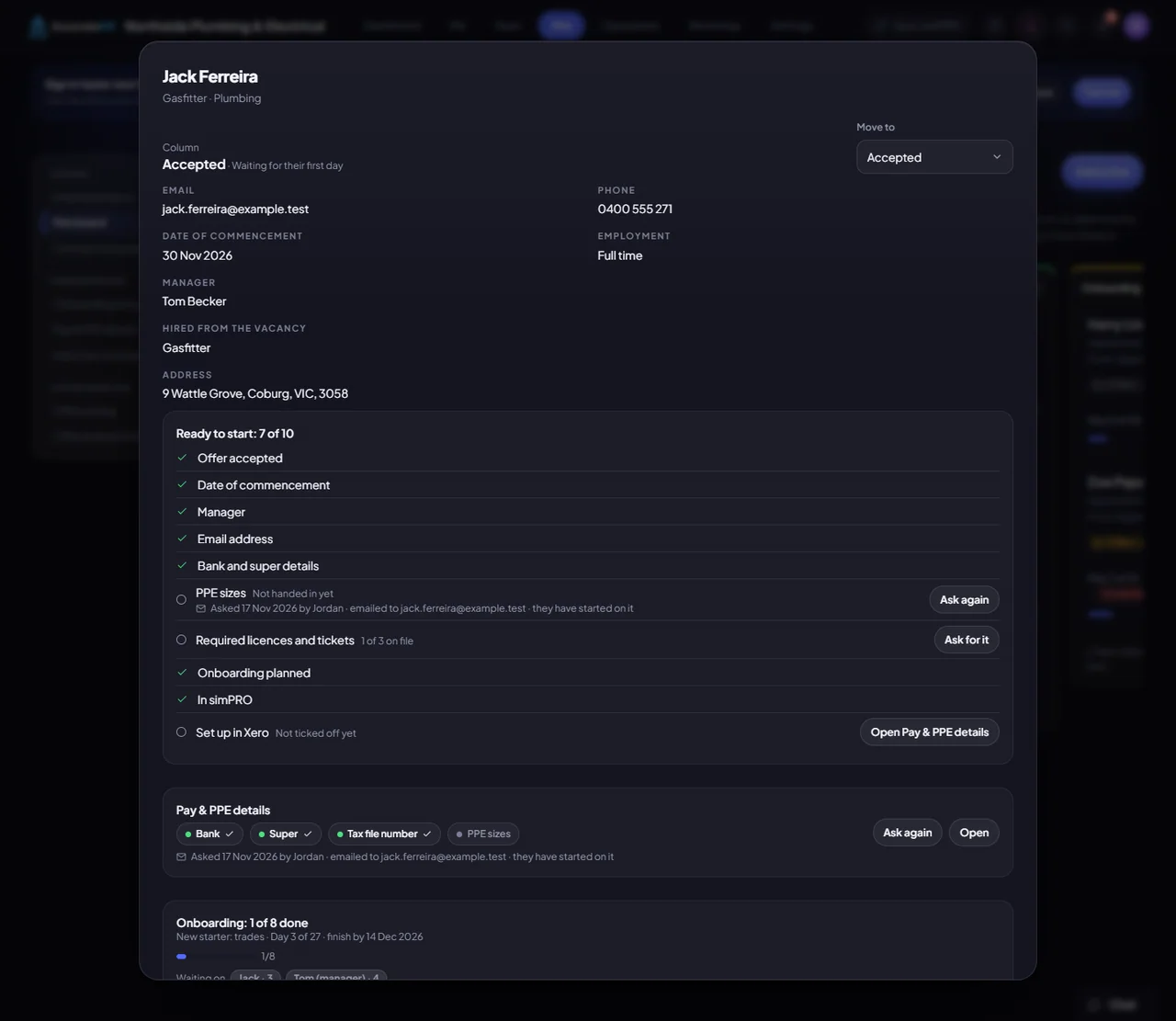
  • How ready they are. Cards in the first three columns show how many things are done before the first day, such as 3 of 8, or Ready to start when nothing is left. Opening a card also shows what has already been emailed or asked for, and when.
  • Started on the day. Once an Accepted person’s date of commencement arrives, they count as started and appear in People, even if nobody moved the card.
  • Tidy by itself. Started cards leave the board after 14 days and Declined cards after 60. Nobody is deleted.
Good to know

Admins, and anyone whose access level includes Hiring, can use the board. Adding a hire, starting an onboarding and making an offer still need an admin.
The Hire board: open vacancies, people being set up, offers sent, offers accepted and new starters onboarding
A new hire’s card: his offer accepted, and what is still to do before his first day, with what has already been asked
The Hire board: open vacancies, people being set up, offers sent, offers accepted and new starters onboarding.

Vacancies

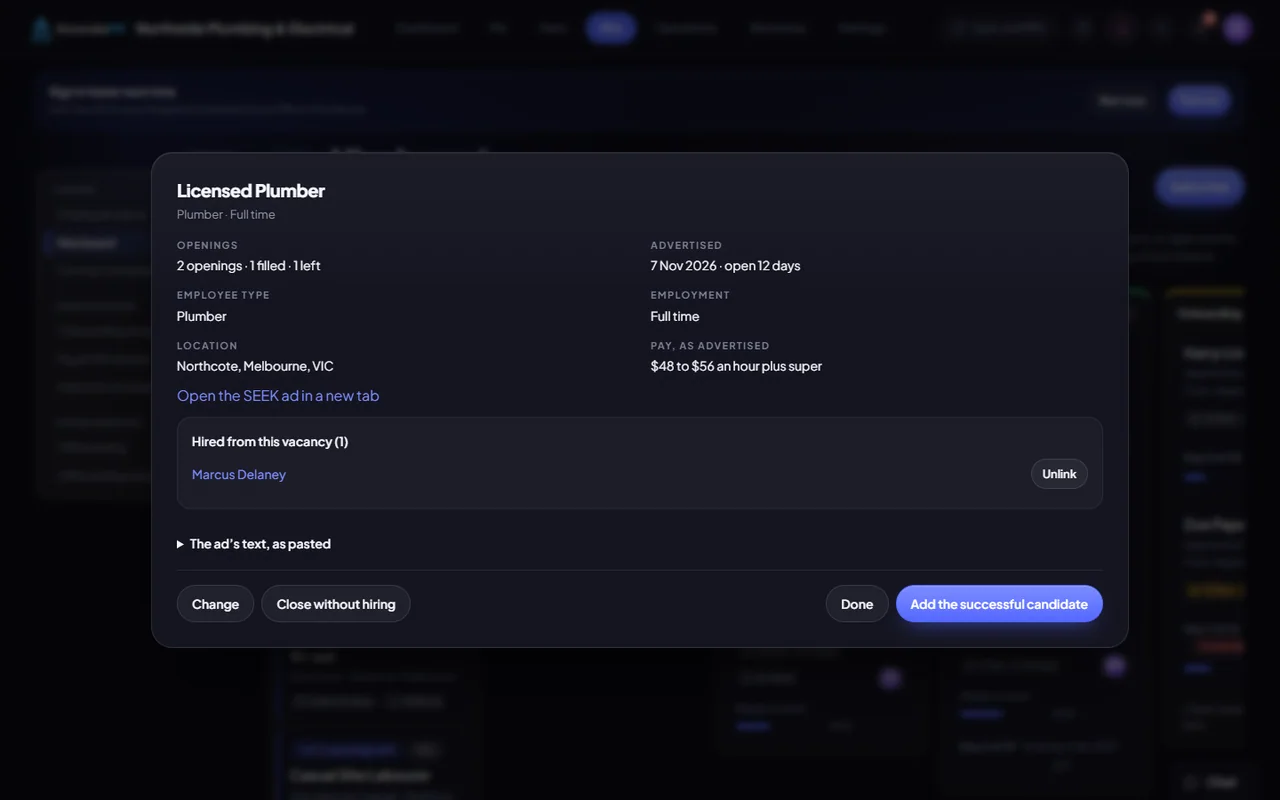
Vacancies keeps the jobs you have advertised in the first column of the Hire board, Open vacancies, so a hire can say which ad they came from. You paste in the ad’s link and its text, and the app fills in the details for you to check.

  • The ad is kept. The app keeps your link and the text you pasted, so the details are still there after the ad comes down.
  • Open until it is filled. A vacancy stays open until every opening has a hire or you close it. If a hire declines their offer, the vacancy opens again.
  • Flagged when it is old. A vacancy open for more than 30 days is flagged, because nothing tells the app when an ad comes down.
  • Only the person you hire. Add the person you hired and their card says which vacancy they came from. Everyone else who applied stays on the job site.
Good to know

Vacancies are typed in with help, not fed from a job site. The app never opens the ad’s page by itself, so if the ad is changed or removed on the job site, change or close the vacancy here yourself.

A vacancy opened from the Hire board: its pay and state, how many openings are left and who was hired from it
A vacancy opened from the Hire board: its pay and state, how many openings are left and who was hired from it.

Contracts

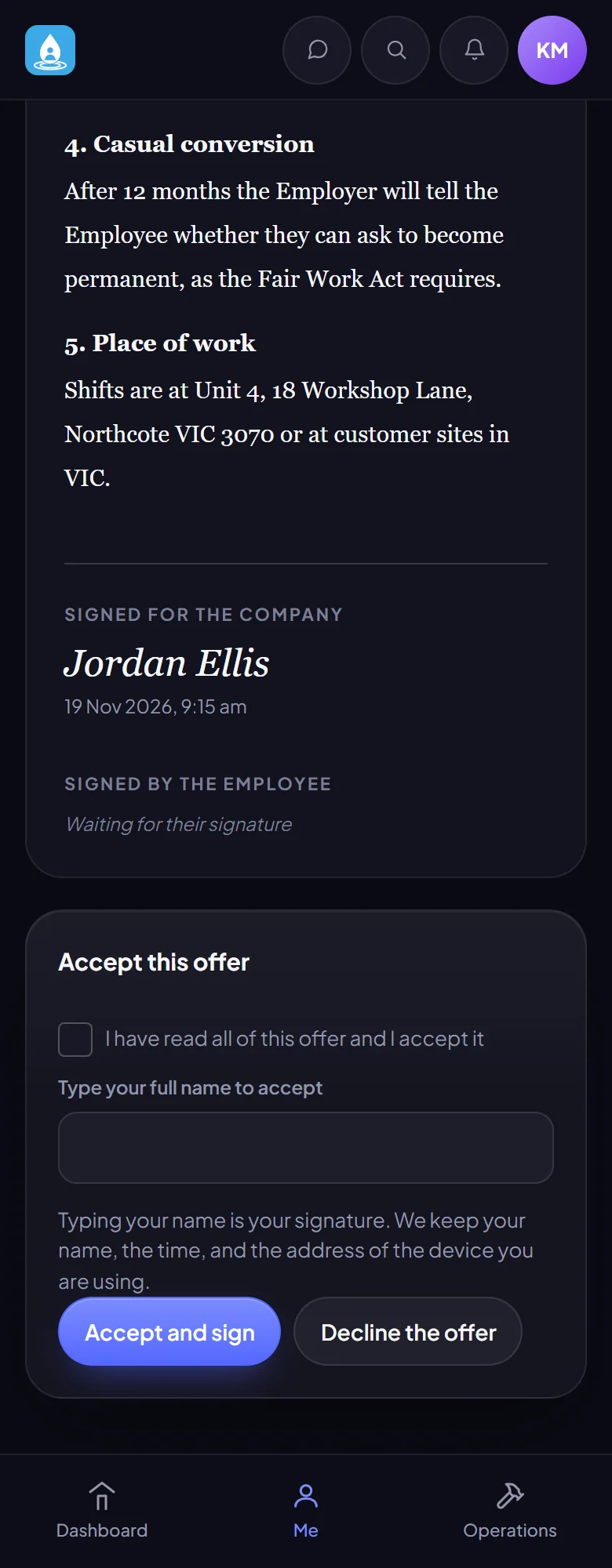
Contracts are made from a template, sent to the person, signed in the app with a typed name, and kept on their record as the signed copy.

  • Wording locked once sent. Once a contract is sent, its wording can’t change. You can withdraw it until it is signed, and a signed one stays on the person’s page as the record.
  • A link with no login. A contract is emailed by default (a box you can untick), with a button to a personal page where the person reads and signs it. You are told straight away whether the email went, and if it didn’t, press Resend.
  • Offers of employment. A contract can be made an offer. When they accept, the onboarding you chose starts that moment. If they decline, the offer stops, they are archived and any onboarding is cancelled.
  • Chased for you. You are told in the bell menu when an offer is still unanswered after 3 and 7 days, is about to end, or has ended. An offer is only emailed if you tick it, with email reminders and their login details as extra ticks.
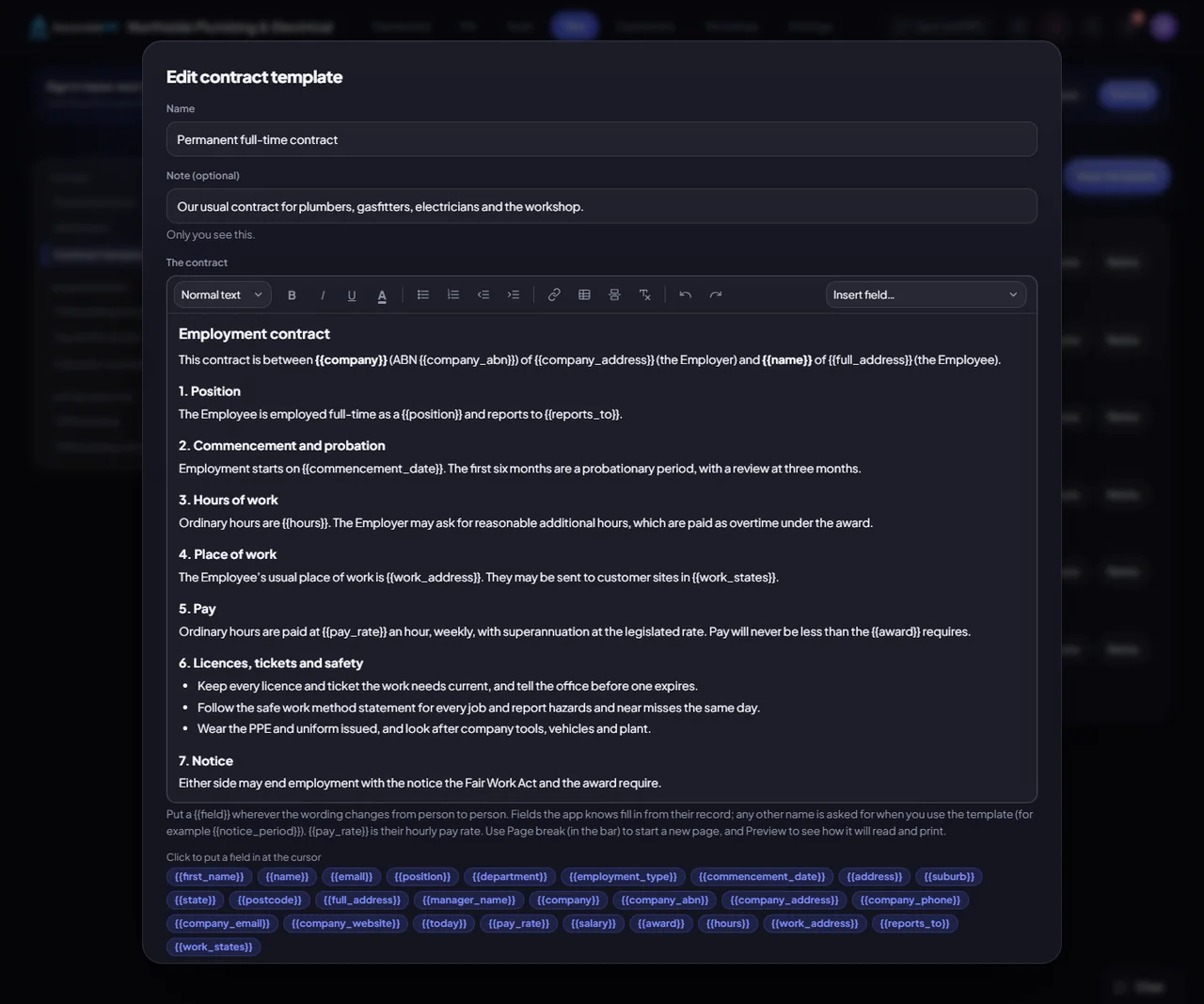
  • Details filled in from the record. A template fills in details such as salary, award, hours, place of work and who they report to. If a template uses a field that isn’t on the person’s record, you are asked for it when you make the contract.
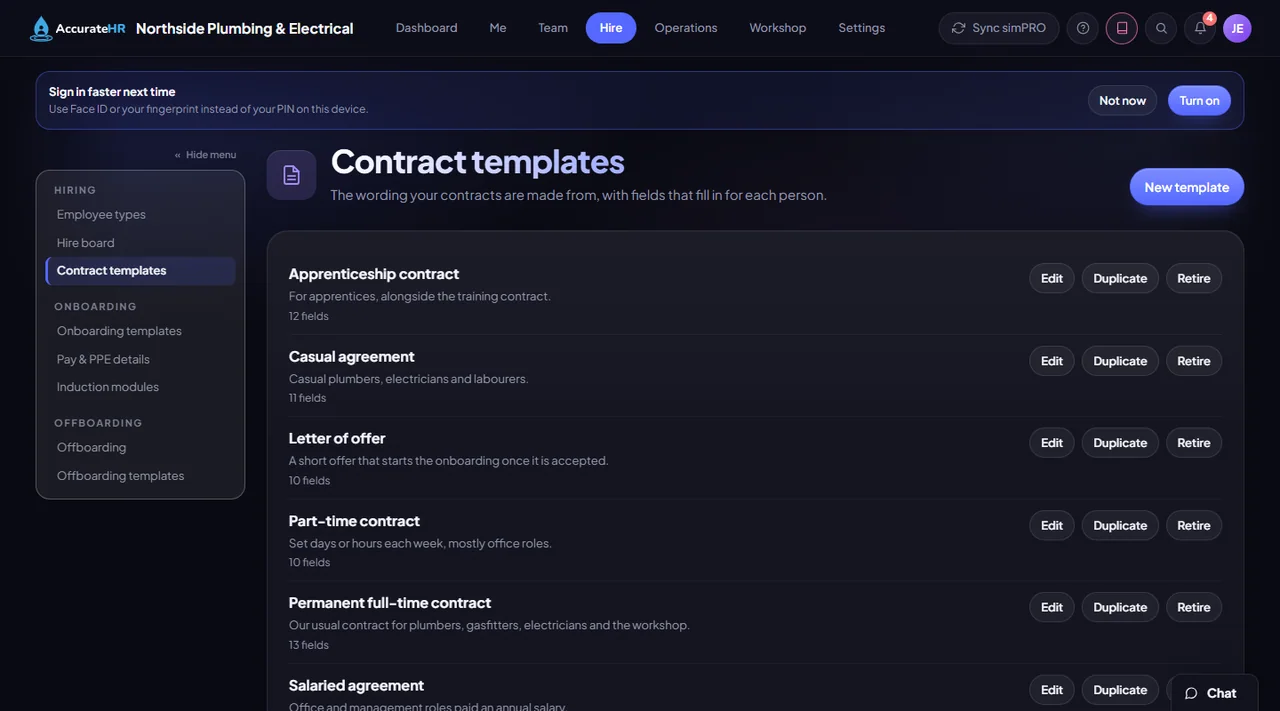
Contract templates: permanent, apprenticeship, casual, part-time and salaried wording with fields that fill in for each person
A casual agreement on a phone, ready to accept by typing a name
A contract template in the editor, with fields that fill in from each person’s record and the company’s details
Contract templates: permanent, apprenticeship, casual, part-time and salaried wording with fields that fill in for each person.

Starter pack link

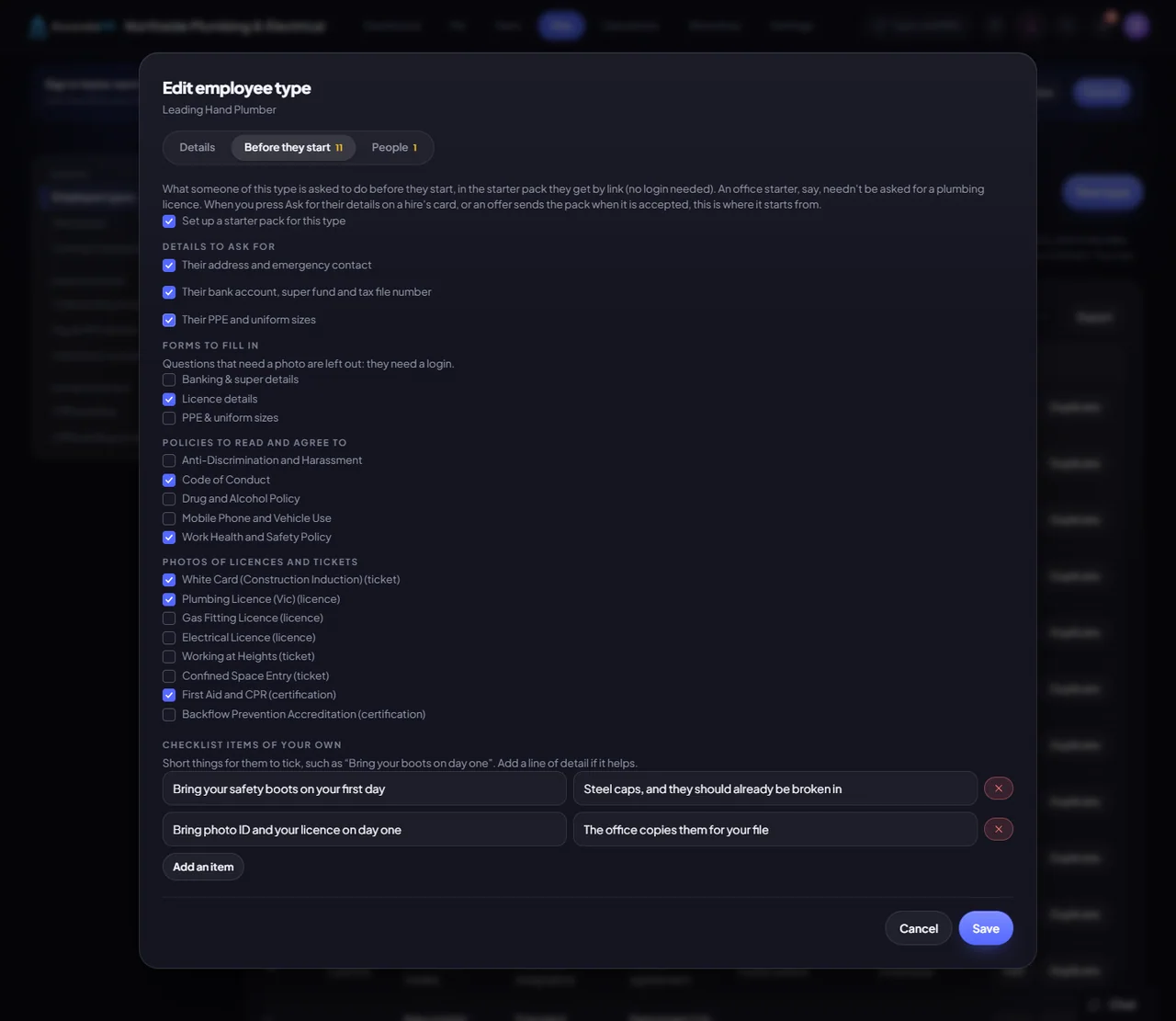
The starter pack is a personal link, with no login, where a new hire adds their address, emergency contact, bank, super, tax file number and PPE sizes before their first day. They fill it in on their phone.

  • Sent from the card, or on acceptance. Send the link from the person’s card on the Hire board, or have it go out automatically when they accept an offer. Nothing is sent unless you choose to send it.
  • Asks what their type needs. What the link asks for comes from the person’s employee type, on its Before they start tab. You can still change it for one person’s link.
  • Straight onto their record. Everything they add goes on their record just as if they had typed it under My HR, with the same checks.
  • More than details. A link can also carry forms, policies to read and agree to, and checklist items for them to tick.
  • A link that works for 30 days. A new link replaces the one before, and it only lets them add their own details. Whoever made the link is told in the bell menu when the person finishes.
An employee type’s starter pack: the details, forms, policies and licence photos a new hire is asked for before day one
An employee type’s starter pack: the details, forms, policies and licence photos a new hire is asked for before day one.

Pay & PPE details

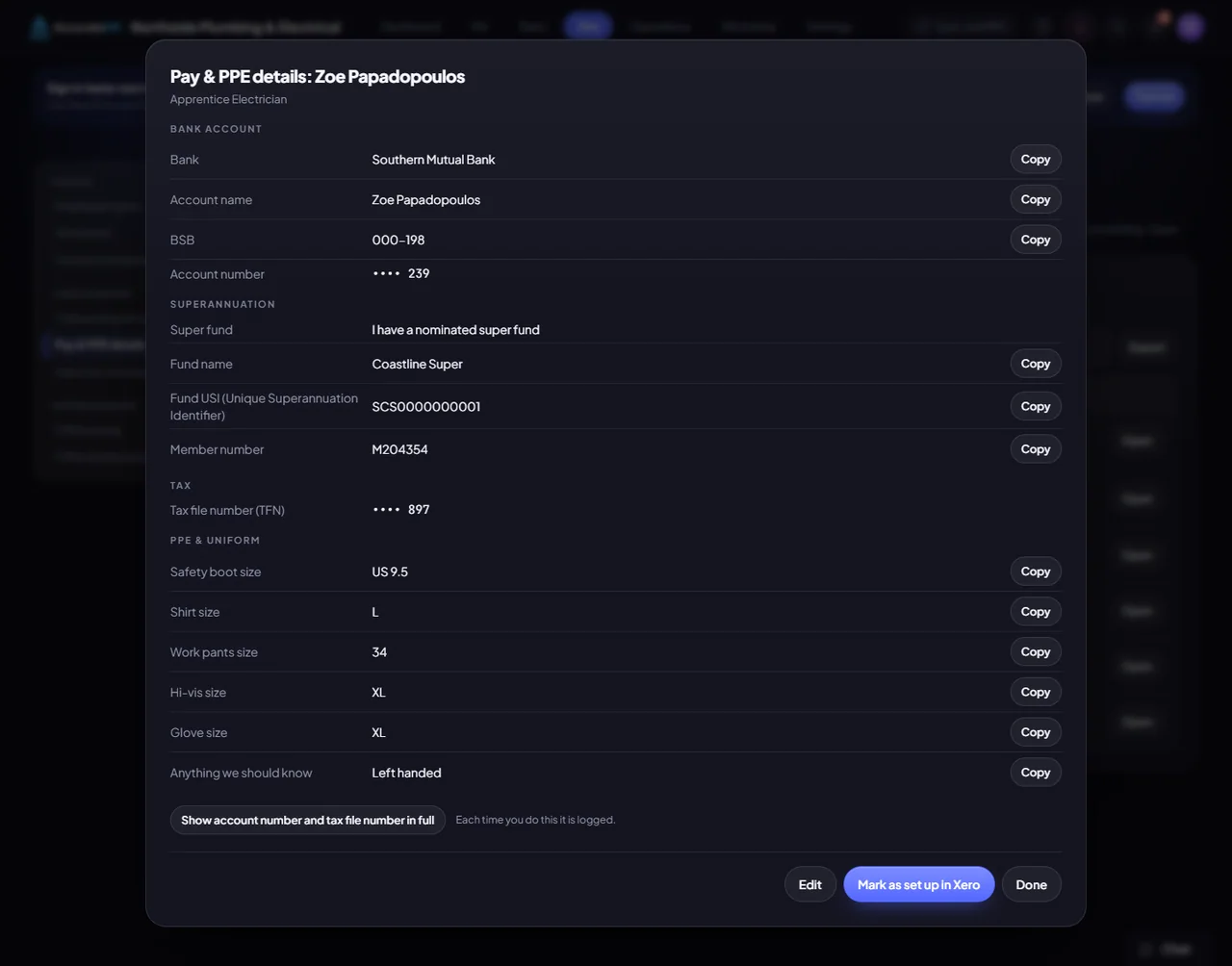
Pay & PPE details keeps what payroll and the stores need in one place on each person’s record: their bank account, super, tax file number and PPE and uniform sizes. People add their own under My HR, or through a form in their onboarding.

  • Masked everywhere. Account numbers and tax file numbers show masked everywhere, even to the person who typed them. Showing one in full is logged, but the number itself is never recorded in the log.
  • Checked as it is typed. A BSB must be 6 digits, an account number 5 to 10, and a tax file number 8 or 9. The bank is filled in for you once the BSB is typed.
  • Seen only by those allowed. Admins see everyone’s on Hire → Pay & PPE details, according to the Sensitive data tab of their access level.
  • A tick for Xero set-up. If someone’s bank, super or tax file number changes after you ticked them off, the tick comes off so you set them up in Xero again.
  • Edit without retyping. Leave the account number or tax file number blank when you edit to keep what is saved. A blank ordinary field clears it.
Good to know

Mark as set up in Xero is a note to yourselves. Nothing is sent to Xero, so you copy each person’s details across there and tick them off.

Pay and PPE details for a new starter: bank, super, tax file number and sizes, with the account and tax file numbers masked
Pay and PPE details for a new starter: bank, super, tax file number and sizes, with the account and tax file numbers masked.

Employee types

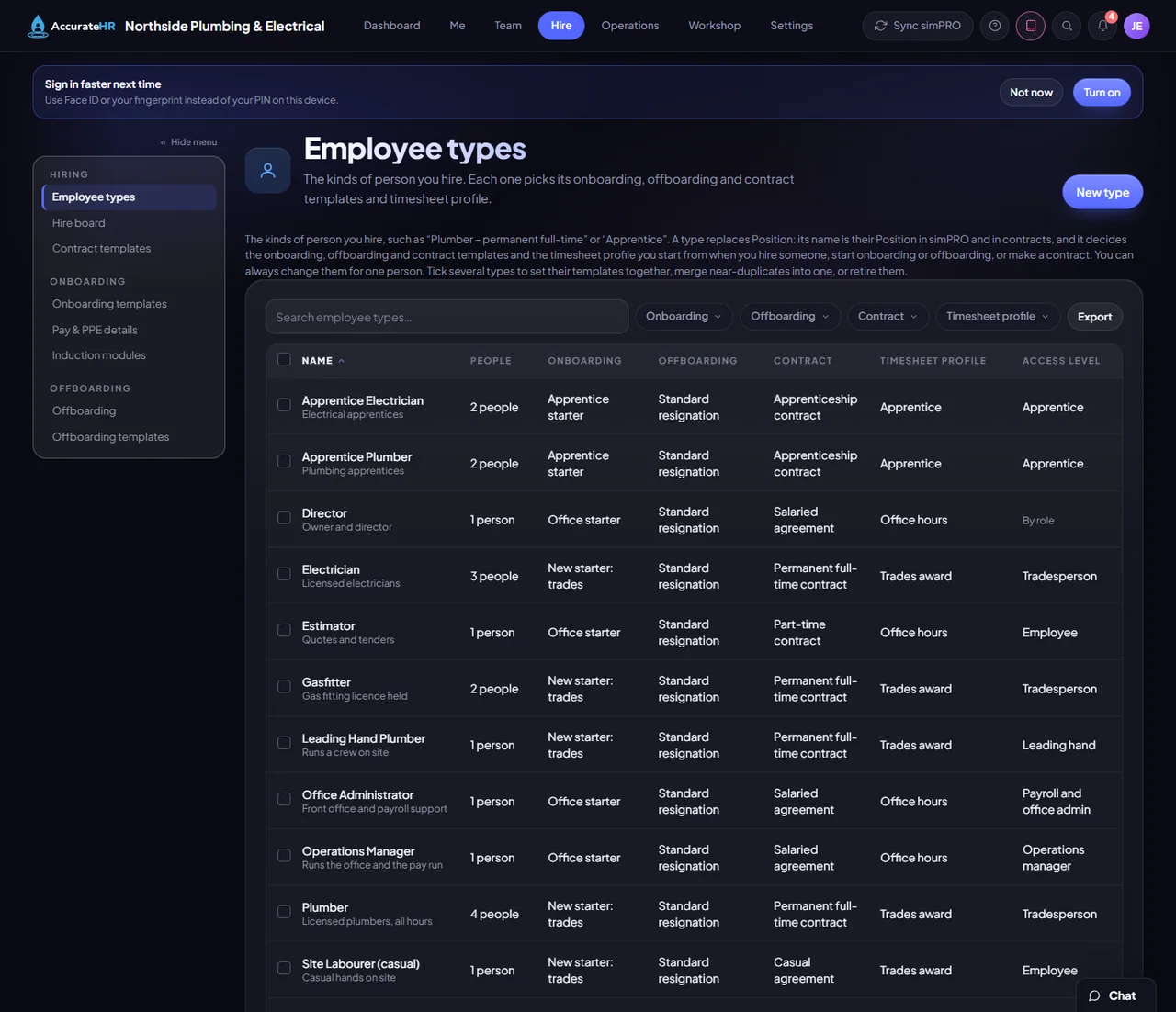
An employee type is a named bundle for each kind of person you hire, such as a permanent full-time plumber or an apprentice. It names the onboarding, offboarding and contract templates and the timesheet profile that kind of person gets, so the right ones are picked for you.

  • The type is the Position. The type’s name is the person’s Position, so it fills in the position on a contract.
  • Rename or retire safely. Renaming a type renames the Position of everyone who has it. Retiring a type keeps it on the people who have it and stops it being offered for anyone new, and you can bring it back.
  • Running onboarding is left alone. Changing someone’s type later does not change anything already started: a running onboarding keeps its template.
  • A starter pack for each type. Each type can say what someone of that type is asked for before their first day. Leave it off and they are asked for the three standard sections.
  • Change several at once. Tick several types to set their templates, retire them or bring them back together, or to merge them into one.
Good to know

Whether someone is full-time, part-time, casual, a contractor or an apprentice is a separate field, so make a type for each combination that needs its own contract.

Employee types: each kind of person with its onboarding, contract and timesheet templates and its access level
Employee types: each kind of person with its onboarding, contract and timesheet templates and its access level.

Onboarding & induction

Every new hire gets a guided first few weeks: tasks, induction modules to read, forms to fill in, documents to sign and policies to agree to, all on one timeline counted from their start date. Every new company starts with a New starter template to change as it likes.

  • One timeline from day 0. A template puts everything on one timeline by due day, where day 0 is their first day. Starting onboarding copies the template with real dates, one run at a time per person.
  • Every task has an owner. A task is for the new hire, their manager, a particular person or the office. Whoever has a task is told in the bell menu, and a task is never left with nobody.
  • Watch it on the board. The Onboarding column of the Hire board shows how far through each new starter is and what is overdue. Managers get the tasks assigned to them.
  • Emailed only if you choose. Nothing is emailed unless you choose it. Reminders go to the bell menu, with email as an option.
  • Swap the template. Cancelled the wrong onboarding? Press Enrol in onboarding on the person’s Hire card and pick the right template. You can enrol someone ahead of their first day.
Good to know

A new hire works through their onboarding by signing in, so they need a login. You can send their login details when they accept an offer, or later from their page.

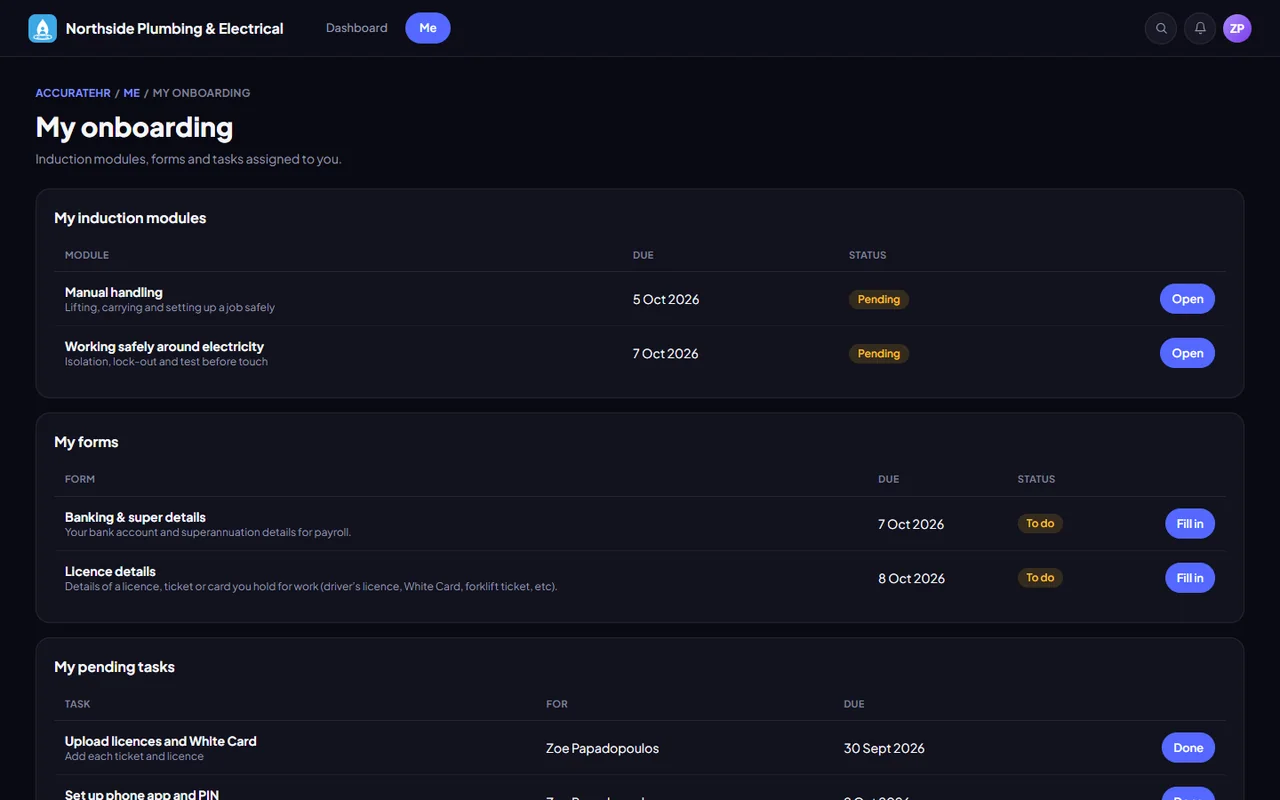
A new starter’s own onboarding checklist
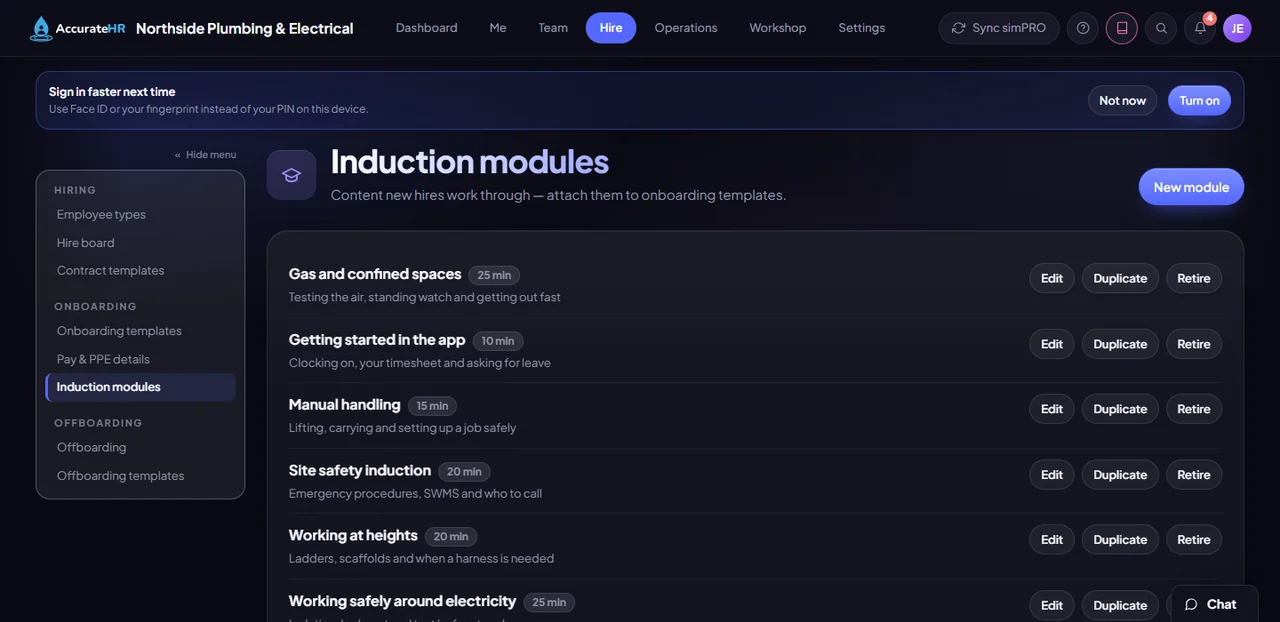
Induction modules: short reads new starters work through, with their reading time
A new starter’s own onboarding checklist.

Offboarding

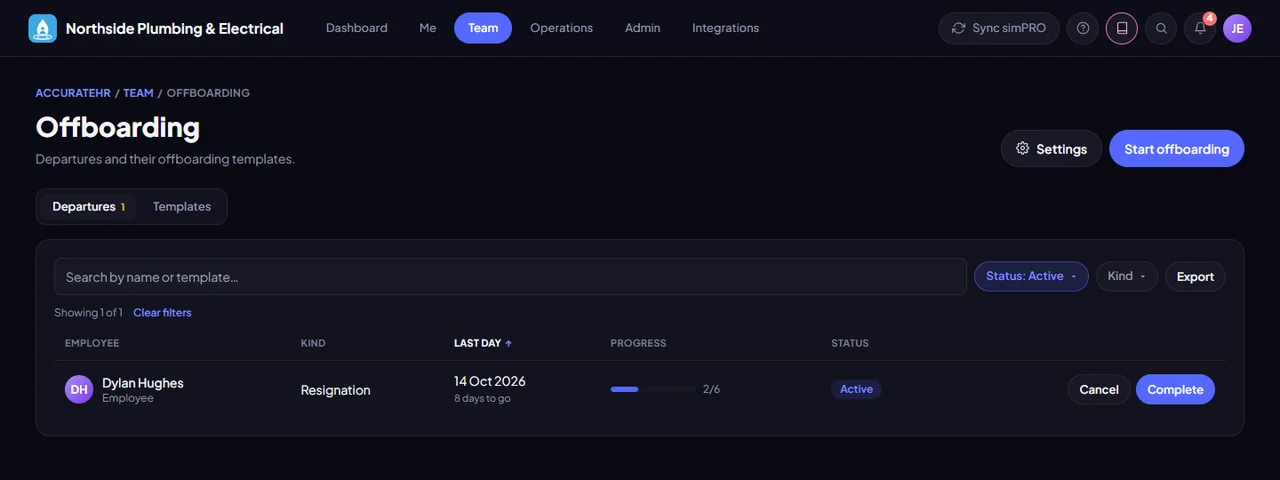
Offboarding is the mirror of onboarding for people who are leaving. A template lists the tasks, such as returning gear, removing access and final pay, and each leaver gets their own run, with an exit interview.

  • Start it for the leaver. Start offboarding for the person and pick a template. The leaver and their manager get their tasks in their to-do lists, and the leaver sees theirs in My departure.
  • An exit interview. The exit interview is recorded against the leaver’s offboarding.
  • The right template already chosen. An employee type can name the offboarding template for that kind of person, so the right one is chosen when you start.
  • HR notes stay with admins. A person’s own page never shows the HR notes of their offboarding, such as the reason or whether they could be rehired. Those stay with admins.
Offboarding: people who are leaving, and how far through their checklist they are
Offboarding: people who are leaving, and how far through their checklist they are.
Who uses it

The right view for each person.

Admins and the office

Add hires, make offers and contracts, build the templates and watch each starter’s progress.

Managers

Get the onboarding and offboarding tasks assigned to them.

New starters

Fill in their starter pack on a phone, sign their contract and work through their own onboarding.

Ready to take the paperwork off your team?

Tell us about your business and we will get you set up with AccurateHR.