Know who has signed on, who holds the ticket and what is due.

Write safety statements and checklists, put them on jobs and have the crew sign on from their phone. Keep every licence and ticket with its expiry, report incidents and hazards, and follow plant from pre-start to service.

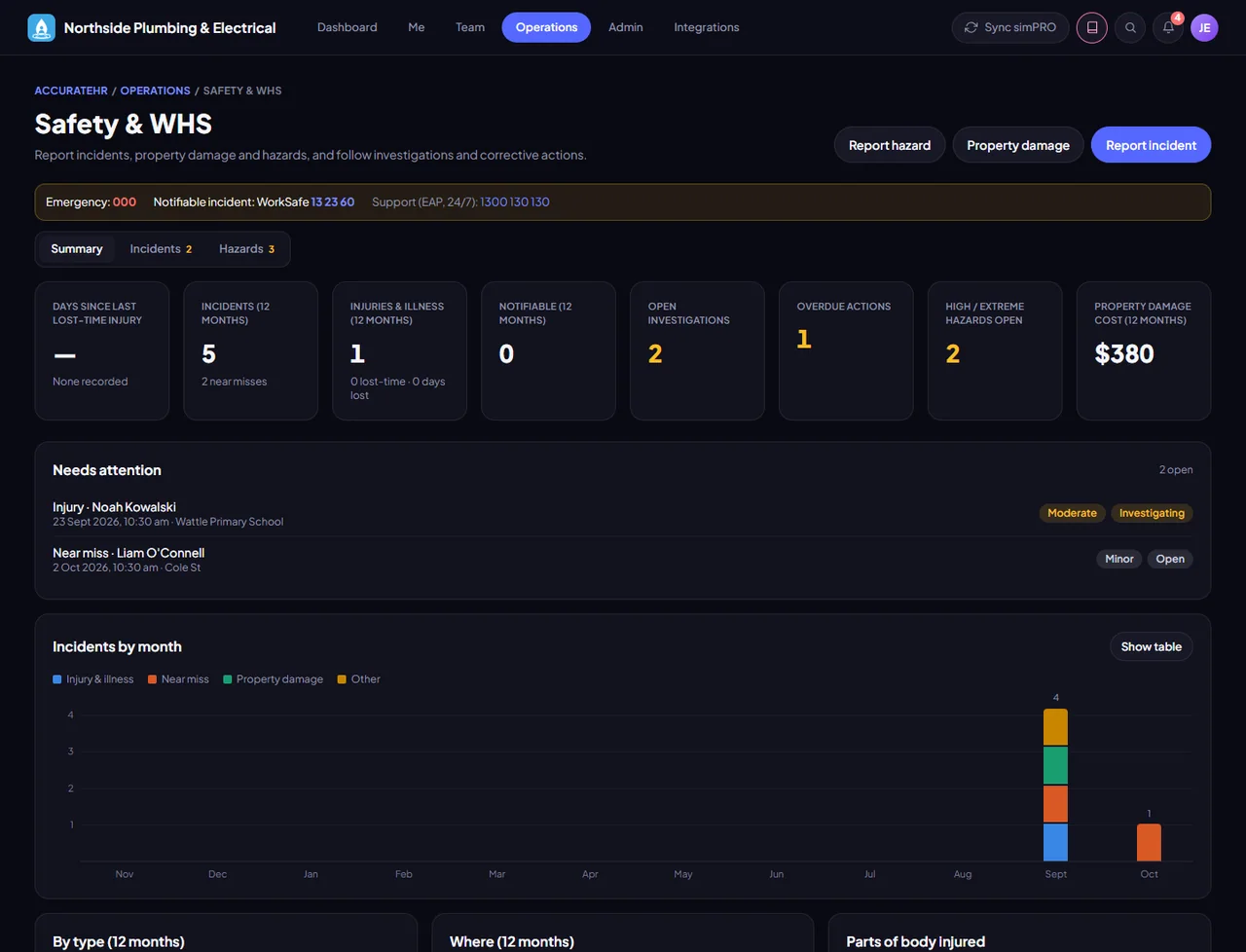
The safety summary: incidents, open investigations, overdue actions and hazards
The safety summary: incidents, open investigations, overdue actions and hazards. A screen from the app, showing made-up sample data.

Job safety and SWMS

Write your Safe Work Method Statements in the app and publish them as numbered versions. Put them on jobs, and the crew sign on from their phone, with or without signal.

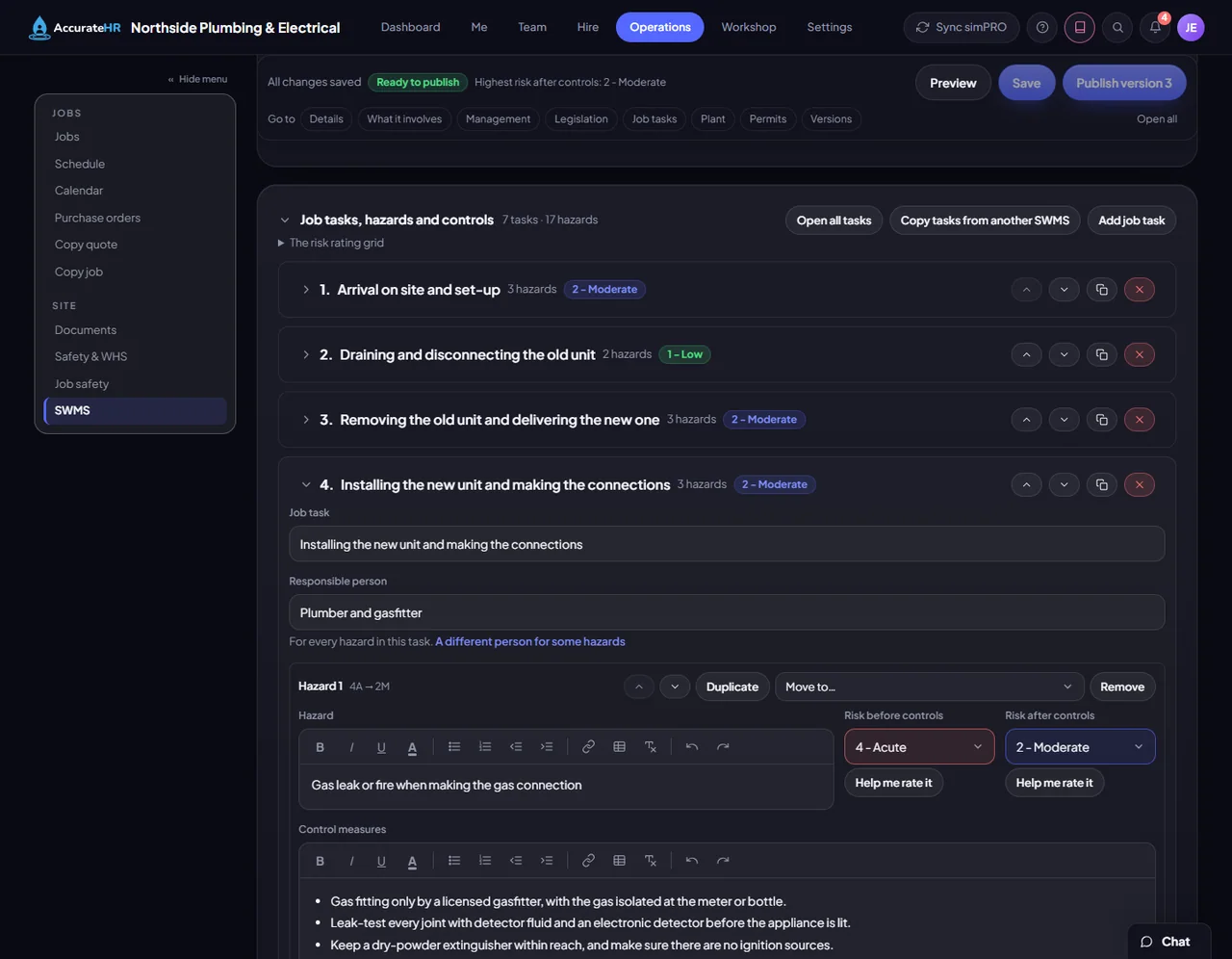
  • Statements written in the app. The hazards and protective equipment that apply, then each job task with its hazards, risk ratings before and after, and controls. It prints as a landscape page like a paper statement.
  • Frozen, numbered versions. Publishing makes a version that cannot be changed, with a review date. A hazard still rated Acute after its controls blocks publishing.
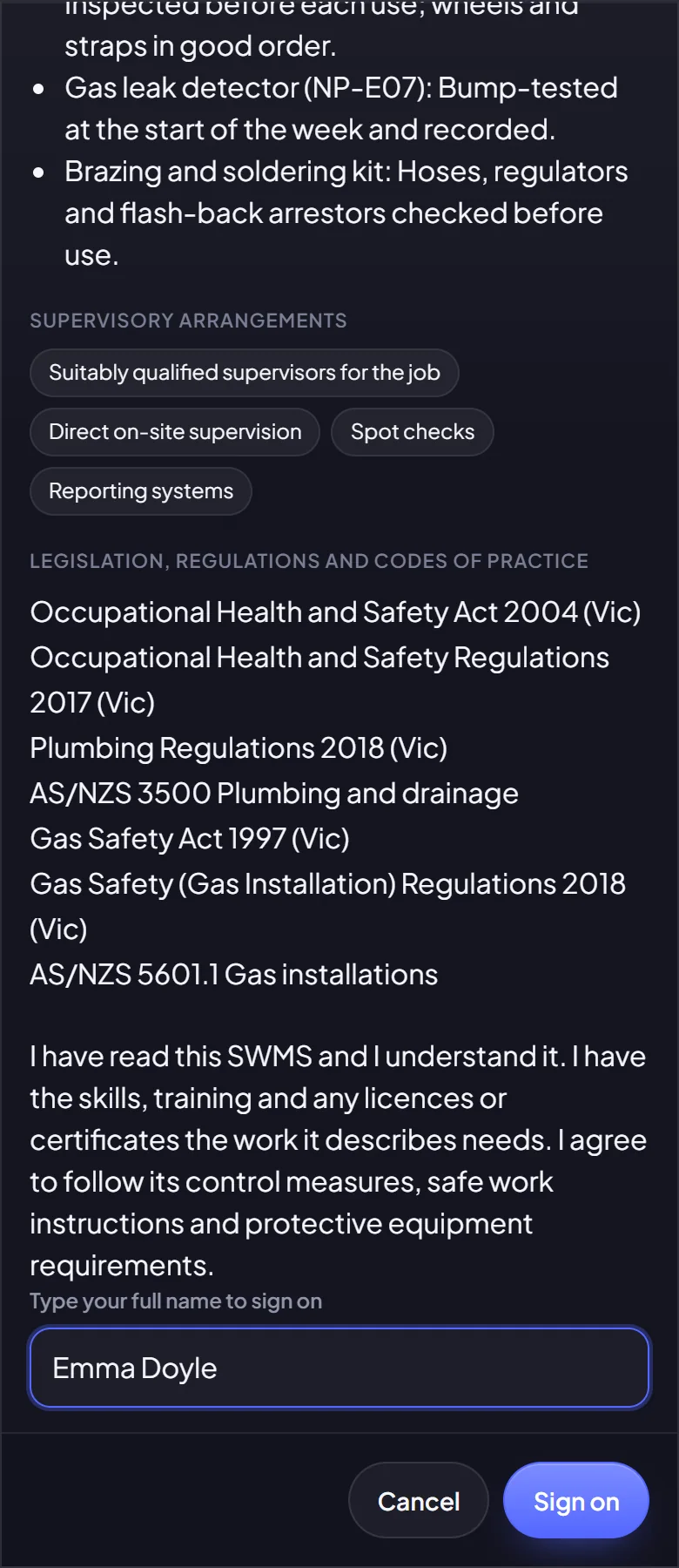
  • On the job, signed by name. Put several statements on a job at once, with the job’s details entered once. Each person reads the statement and signs on by typing their own name, and a new version asks everyone again.
  • Who is still to sign on. A list shows who is booked on a job in the next two weeks, on the published schedule, and has not signed on. The job’s leader sees the people booked on their jobs who have not signed, in their to-do list for the next week.
  • Checklists for the start and finish. On a phone, Start is held until the crew have signed on and ticked the start checks, and a required item that is Not OK holds them until it is put right.
Good to know

Statements and checklists go on jobs read from simPRO, which is being prepared for customers. Writing, attaching and publishing are for people whose access level has them: to start with, owners and admins. Crews see statements when their level has Job safety, which the standard Employee, Mechanic and Manager levels do. The still-to-sign list works from the schedule published to staff.
More about Job safety and SWMS
A SWMS open in the editor: job tasks one to a row, one task open with a hazard, its risk before and after, and its control measures
Signing on to a SWMS on a phone: the sentence being agreed to, a name typed, and the Sign on button
A SWMS open in the editor: job tasks one to a row, one task open with a hazard, its risk before and after, and its control measures.

Incidents and hazards

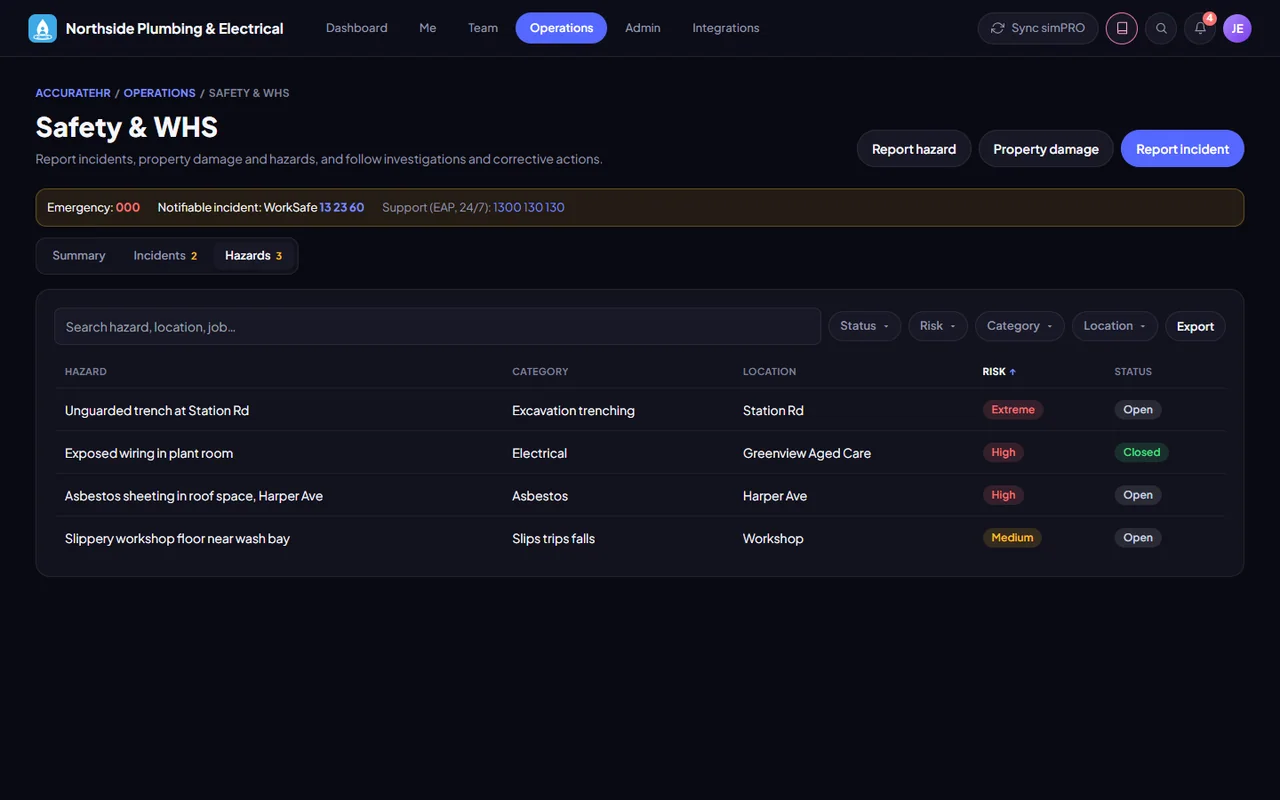
Anyone can report an incident, property damage or a hazard, with photos. Managers and admins rate the risk, investigate and close it out.

  • Report it on the spot. Say what happened, add photos and the job it happened on, and what was done straight away. Admins are notified at once, and the notification opens that report.
  • A risk band from a 5 by 5 matrix. A manager rates likelihood and consequence. The band is the two ratings multiplied: low under 5, medium from 5, high from 10 and extreme from 16.
  • Corrective actions with owners. Add actions with an owner and a due date, record the investigation, and close the report when it is done. Overdue actions show on the dashboard and as a to-do for their owner.
  • Notifiable incidents. Marking an incident notifiable tells admins that your state’s work health and safety regulator must be rung immediately, the site preserved and written notice sent where the law asks for it. The regulator, its number and the law named start from your company’s state.
Good to know

Set your state under Company details first: until a state is set, the screens show no number to ring. An admin can correct the regulator, its number and the law named. Incident and corrective-action reports are in Reports, for admins. The built-in regulator numbers are a starting point: check yours under Company details before you rely on them. Picking the job a report is about needs jobs read from simPRO, which is being prepared for customers.

The safety summary: incidents, open investigations, overdue actions and hazards
The hazard register with risk ratings
The safety summary: incidents, open investigations, overdue actions and hazards.

Licences, tickets and qualifications

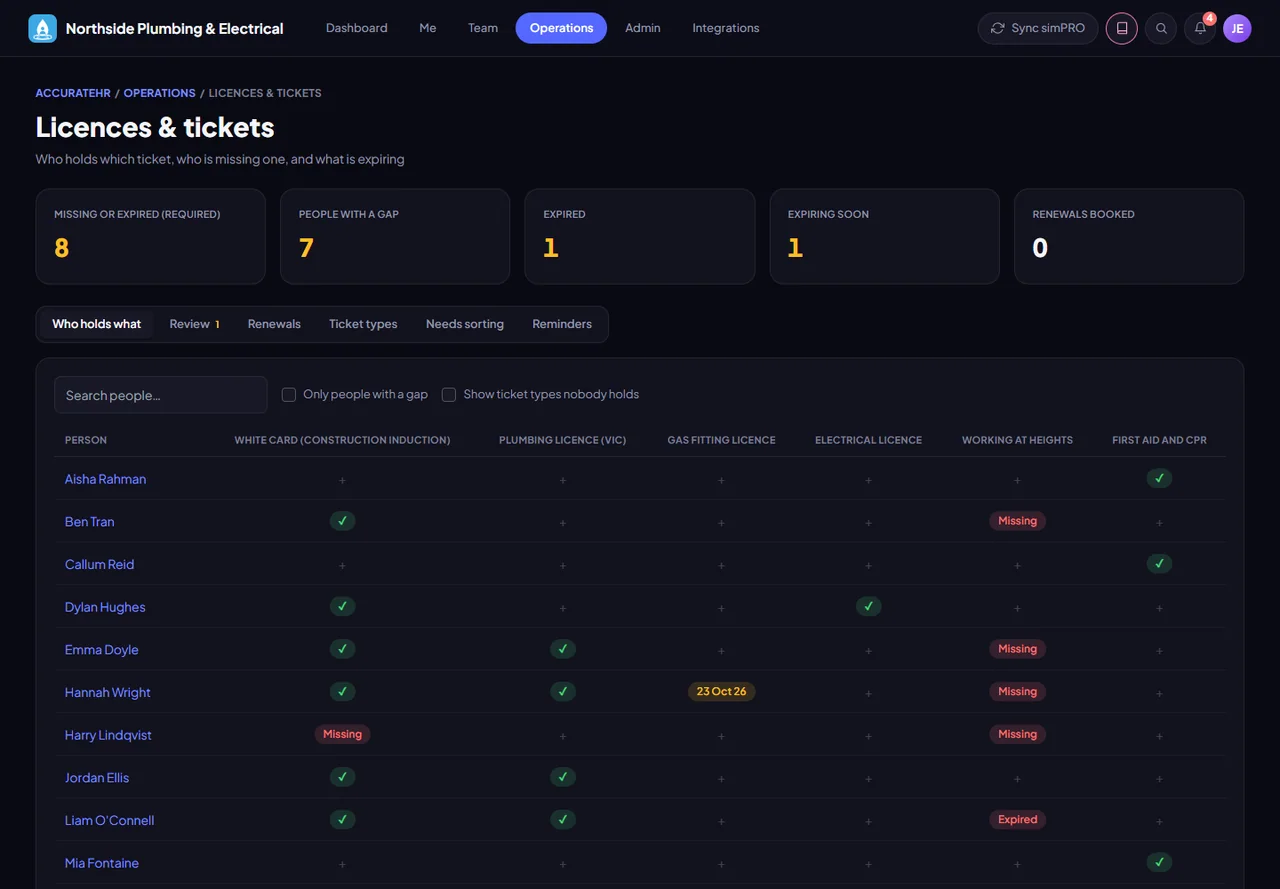
Every licence, ticket and certification is kept for each person with its photo and expiry. One grid shows who holds what, where the gaps are and what is about to expire.

  • Say who must hold what. Set which tickets a role, a department or a single person must hold, and the gaps show up as soon as you add the requirement.
  • The who-holds-what grid. Filter by name, department, employee type, kind of ticket, one ticket or status: Missing, Expired, Expiring soon, Renewal booked or Current. The filters work together, so Plumbing and Expired lists the plumbers with an expired card.
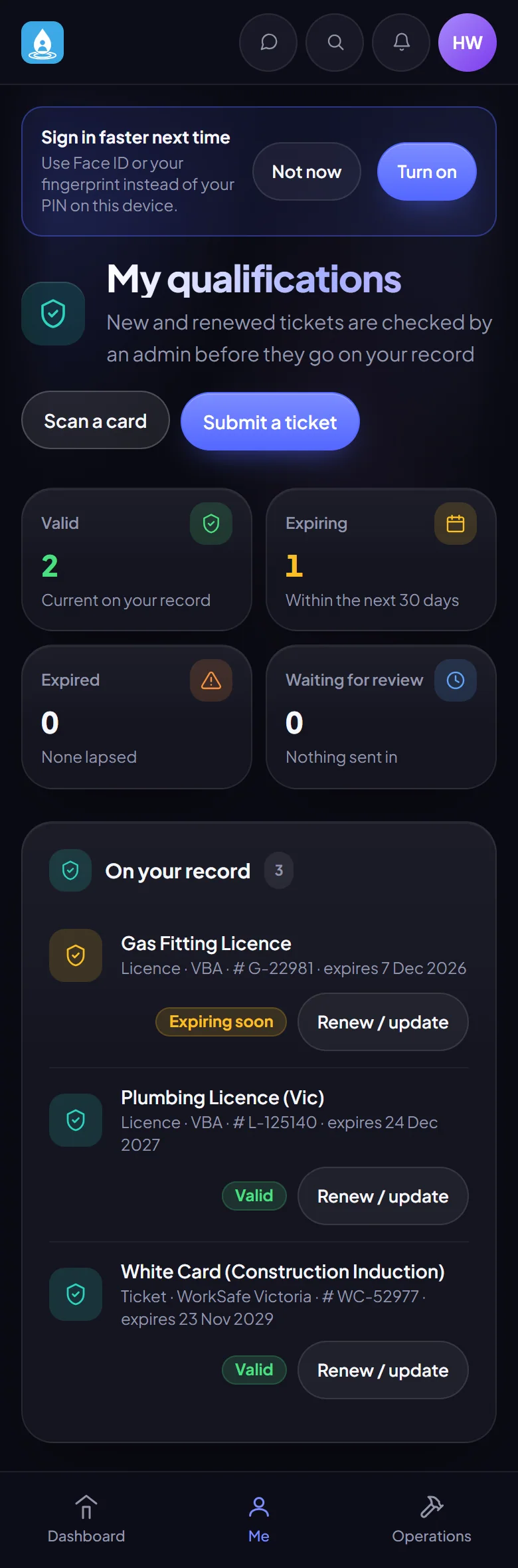
  • Scan a card, or email a link. Scan a card reads the number and dates off a photo for you to check, and nothing is saved until you confirm. Or email someone a link where they add photos of the licences they are missing, with no sign-in.
  • Review before it goes on file. A new or renewed card sent in by staff waits in a review queue until an admin approves it. The old card is kept as history.
  • Download for filing. Download on a card saves its scan under a filing name: expiry date, licence, person.
Good to know

Scan a card is limited to 100 reads a day for the company and 10 a day for each person, and past that the same form is typed by hand. The link you email works for 14 days, and a newer link switches the old one off.

More about Licences and tickets
The who-holds-what grid of licences and tickets, with gaps and expiries flagged
My qualifications on a phone, with Scan a card beside Submit a ticket and one licence expiring soon
The who-holds-what grid of licences and tickets, with gaps and expiries flagged.

Assets, plant and the workshop

A register of your tools, vehicles and plant: what you have, who has it, whether it is safe to use and when it is next due. A workshop keeps it that way, with pre-starts, defects, work orders and parts.

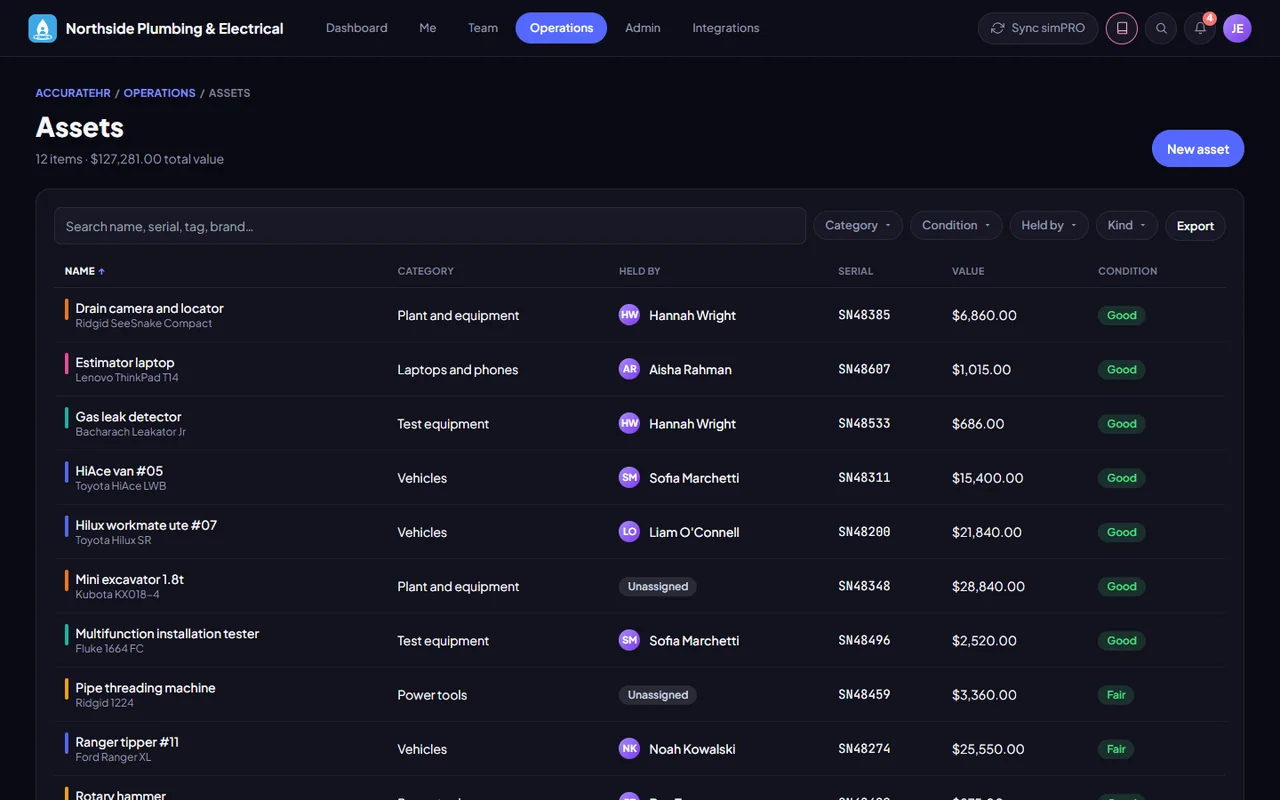
  • A register with history. Tools, vehicles and plant with who has each one and when it is next due for a service, registration, inspection or test and tag. Every assignment and return is kept in an audit log.
  • Check-out with a pre-start. Staff take plant and hand it back from their phone, running the daily pre-start for that kind of plant. Plant that is out of service or non-compliant cannot be checked out.
  • Failed checks become defects. A failed pre-start marks the item out of service and raises a defect for the workshop. Handing plant back with a defect reported does the same.
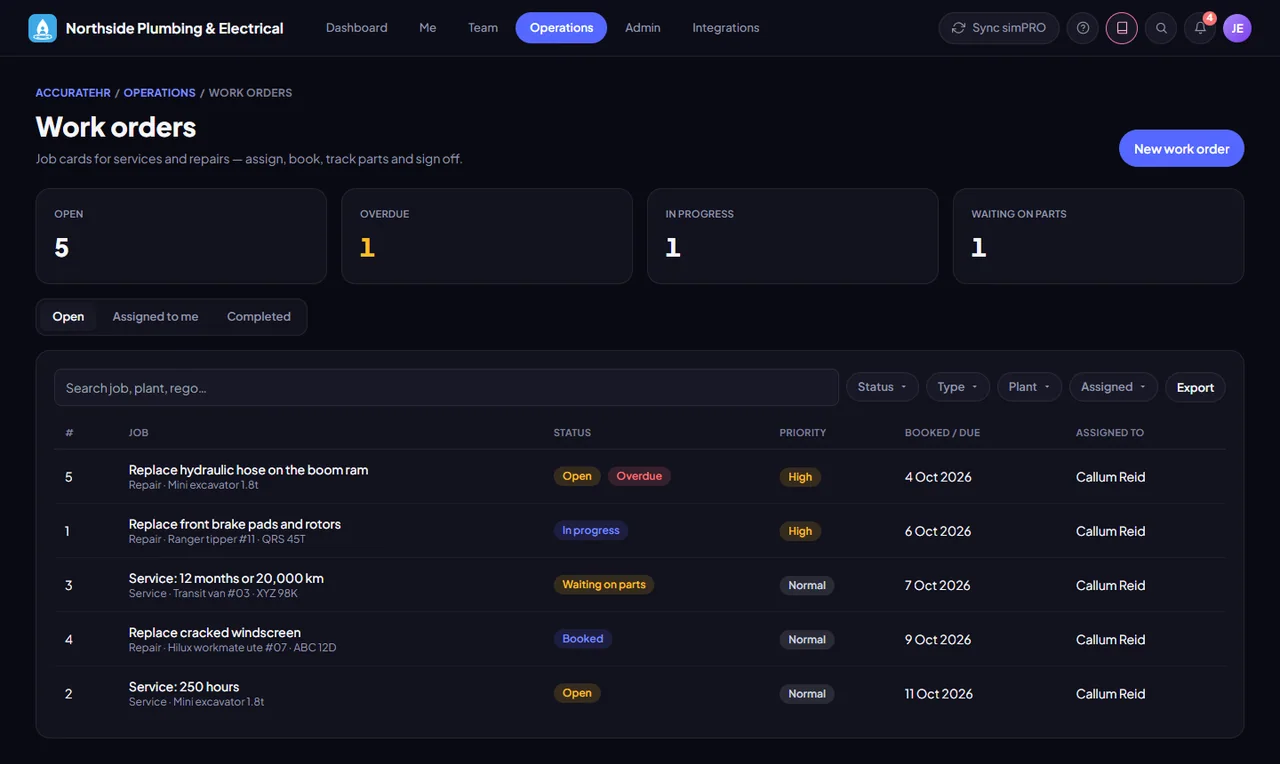
  • Work orders and parts. The mechanic turns a defect into a work order, adds the parts and finishes it with the cost and hours of downtime. Finishing a service moves the next due date forward, and the history keeps the cost, supplier and invoices.
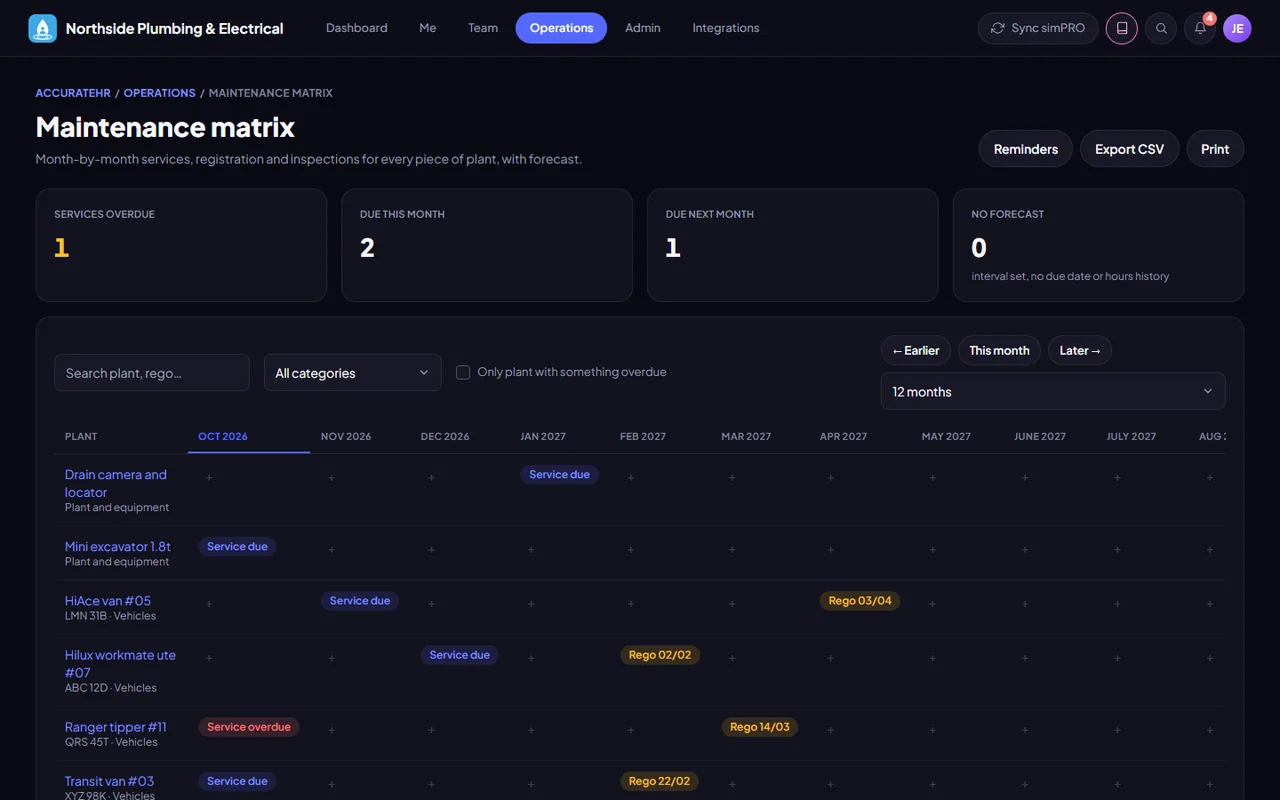
  • The maintenance matrix. Plant down the side and months across the top: services done, due, overdue and forecast, plus registration, test and tag and inspections. Tap an empty cell to book one.
  • Ute checks. Make a checklist for each kind of ute, check each ute against it, and see what is short on one grid. Short tells admins and mechanics, and does not take the ute off the road.
Good to know

Each kind of plant uses the pre-start checklist of its asset category, which an admin sets up. Mechanics and admins run the workshop, and staff see the plant they hold. Ute checklists are written first, and each ute is given one. Ute checks are new and still being checked: ask us to show them to you.

The asset register with who holds each item and its condition
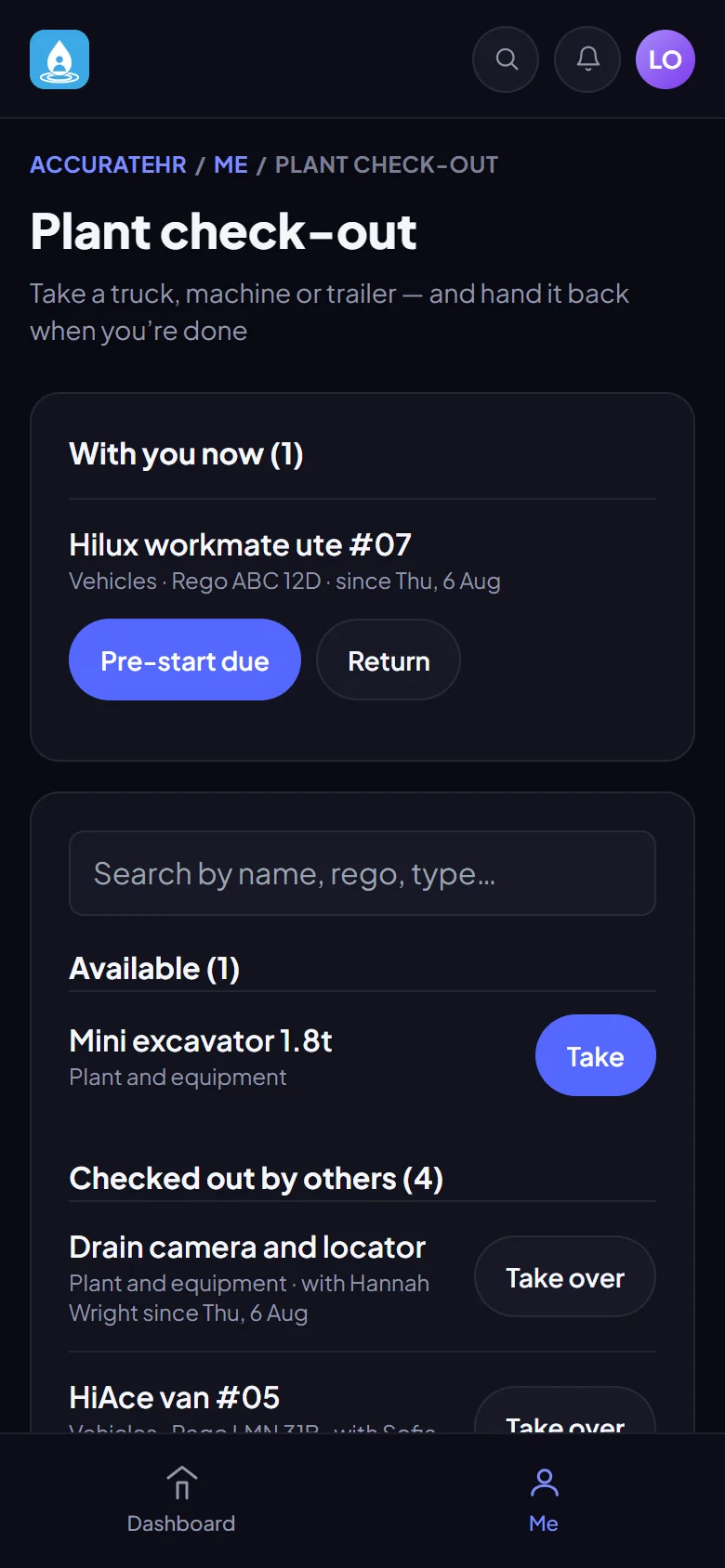
Checking a vehicle or machine out from a phone
The maintenance matrix: plant down the side, months across the top
Work orders: job cards for services and repairs, with what is open, overdue, in progress and waiting on parts
The asset register with who holds each item and its condition.
Who uses it

The right view for each person.

Staff

Read and sign on to the job’s safety statement, report an incident or hazard, send in a new licence, and check plant out and back in.

Managers

See their team’s licences and sign-ons, and rate and investigate the incidents reported.

Admins and owners

Write and publish statements, set ticket requirements, review what staff send in and keep the register.

Ready to take the paperwork off your team?

Tell us about your business and we will get you set up with AccurateHR.